Install and First Launch
Fix install and startup problems: SmartScreen or Defender warnings, Linux .deb errors, the code signature alert, No projects yet, no audio device.
Find the symptom that matches what you see. Download Looper Studio only from looper.studio/download. For the steps to install, see Installation.
Windows: “Windows protected your PC”
Microsoft SmartScreen shows this warning for new apps that few people have downloaded yet. The Looper Studio installer is signed, but the warning can still show.
- Make sure that you downloaded the installer from looper.studio/download. The file name is
LooperStudioSetup-<version>.exe. - Click More info.
- Read the Publisher line. It must show GN NEODIGITAL TECHNOLOGIES LTD.
- If the publisher is correct, click Run anyway. If it shows Unknown publisher or a different name, do not run the file. Delete it and download it again.
Windows: your browser or Microsoft Defender blocks the download
A browser or Microsoft Defender can block a new file that few people have downloaded, even when the file is safe.
- Download the installer again from looper.studio/download.
- Check the signature. Right-click the file, choose Properties, then open the Digital Signatures tab. The name of the signer must be GN NEODIGITAL TECHNOLOGIES LTD.
- If Defender still blocks the file, do not turn Defender off. Email support@looper.studio with the exact text of the warning.
Windows: you cannot find the app after you install it
Setup first asks whether to install for all users or only for you.
- Only for you (the default, no administrator rights):
%LOCALAPPDATA%\Programs\Looper Studio - All users (needs administrator rights):
C:\Program Files\Looper Studio
Open Looper Studio from the Start menu. Setup can also add a desktop icon.
“This copy of Looper Studio could not verify its own code signature and will now exit.”
On macOS and Windows, the app checks its own signature each time it starts. This message means that the app files are damaged or were changed after we signed them.
- Remove the app. On macOS, move it from Applications to the Trash. On Windows, uninstall it.
- Download a new copy from looper.studio/download and install it.
Your projects and settings are not in the app files, so they stay.
Linux: the .deb package does not install
Looper Studio needs Ubuntu 24.04 LTS or later on a 64-bit Intel or AMD computer (amd64). On an older release, such as 22.04, apt can stop with unmet dependencies.
-
Check your release. In a terminal, run
lsb_release -a. The release must be 24.04 or later. -
Check your architecture. Run
dpkg --print-architecture. It must showamd64. -
Install with apt, so that apt can also install the libraries the app needs:
sudo apt install ./looper-studio_<version>_amd64.debKeep the
./before the file name. Without it, apt looks for a package online and does not use your file.
The package recommends pipewire-jack for low latency, but it does not require it. See Low-latency audio on Linux.
Linux: the app does not open
Open a terminal and run looper-studio. The terminal shows any error message. Send that text to support. See Crashes and getting help.
Home says “No projects yet.” but you have projects
Looper Studio keeps your projects in the Looper Studio/Projects folder in your Documents folder:
- macOS and Linux:
~/Documents/Looper Studio/Projects - Windows:
Documents\Looper Studio\Projects
- Check that your projects are in that folder. Each project is a folder that holds a
.lsprojfile with the same name, for exampleSunset Set/Sunset Set.lsproj. Home does not show projects from other folders. - macOS: allow access to your Documents folder. Open System Settings → Privacy & Security → Files and Folders. Under Looper Studio, turn on Documents Folder. Then quit Looper Studio and open it again. Without this access, the folder looks empty to the app.
- If the project is on another computer and you use Cloud Sync, open the project's ⋯ menu on Home and choose Sync to This Device. See Cloud Sync issues.
“Couldn't read your project library”
Home shows this when the app cannot open or create the projects folder. For example, your Documents folder is on a network drive that is not connected, or you do not have permission to write to it.
- In Finder or File Explorer, open your Documents folder. Make sure that you can create a folder there.
- If Documents is on a network or external drive, connect the drive.
- Quit Looper Studio and open it again.
The full message also names LOOPER_LIBRARY_DIR. This is an environment variable for special setups. Set it to an absolute folder path, and the app keeps its projects in a Projects folder inside that folder. Most people do not need it. On Linux, for example:
LOOPER_LIBRARY_DIR="$HOME/Music/Looper Studio" looper-studioHome shows “Still looking for your projects…” for a long time
The app reads the projects folder in the background. This can be slow when Documents is on a network drive, or in a cloud folder such as iCloud Drive or OneDrive that keeps files only online.
- Wait for the list to finish.
- Set the Looper Studio folder to stay downloaded on this computer. Use the option of your cloud service.
- Or keep your projects on a local drive.
Checking cloud… is different. It shows while the app asks Cloud Sync for your projects.
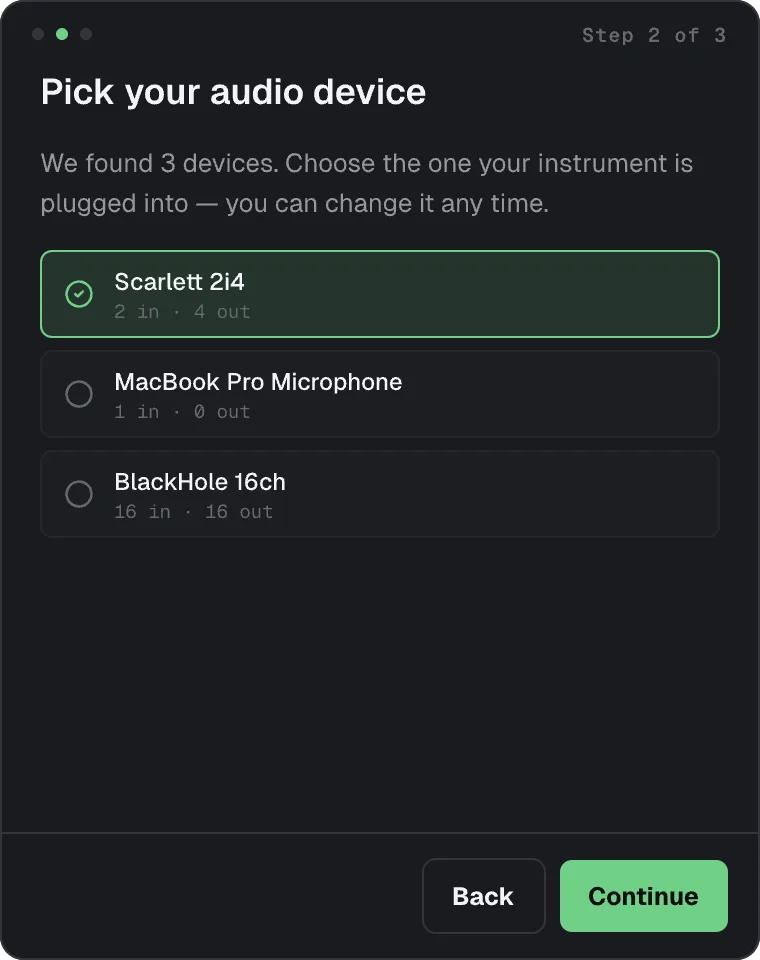
“We could not find an audio device.”
The Setup Assistant shows this when it finds no audio device.
- Connect your audio interface or headphones, and turn the interface on. If the maker supplies a driver, install it.
- Choose Help → Setup Assistant to run the assistant again.
- Or open Settings → Audio and click Rescan devices.
- Windows: in Settings → Audio, try a different Driver. For an interface with an ASIO driver, choose ASIO.
- Linux: another app can hold the sound device. See Low-latency audio on Linux.
Looper Studio does not update
To see your version, open Settings → Updates and read Installed version, or choose Help → About Looper Studio.
- Open Settings → Updates and click Check for updates.
- If there is a new version, the update window opens. Follow it to install the update and restart the app.
- Open Settings → Updates and click Check for updates.
- If there is a new version, the page shows Version … is available. Click Download. Your browser opens looper.studio/download.
- Run the new installer. It replaces the old version and keeps your projects and settings.
- Open Settings → Updates and click Check for updates.
- If there is a new version, the page shows Version … is available. Click Download. Your browser opens looper.studio/download.
- Install the new package with
sudo apt install ./looper-studio_<version>_amd64.deb. There is no apt repository, soapt upgradedoes not update Looper Studio.
If you see Couldn't check for updates, read the reason below it. Could not reach the update server. means that the app is offline or the server did not answer. Try again later, or download the latest version from looper.studio/download. To see what changed in each version, read the changelog.
You want to remove Looper Studio
- If you will not use this computer with Looper Studio again, deactivate it at looper.studio/dashboard/devices. Removing the app does not free its device slot.
- To remove your saved sign-in, click Log out in Settings → Account.
- Remove the app:
- macOS: quit Looper Studio, then move it from Applications to the Trash.
- Windows: open Settings → Apps, find Looper Studio and choose Uninstall.
- Linux: run
sudo apt remove looper-studio.
Removing the app keeps your work and your settings:
| macOS | Windows | Linux | |
|---|---|---|---|
| Projects | ~/Documents/Looper Studio | Documents\Looper Studio | ~/Documents/Looper Studio |
| Settings folder | ~/Library/Looper Studio | %APPDATA%\Looper Studio | ~/.config/Looper Studio |
| Saved sign-in | macOS Keychain | In the settings folder | System keyring |
Delete these folders yourself only if you want them gone. If you delete the Projects folder, you delete your recordings.
Troubleshooting
Fixes by symptom for install and startup, sign-in and license, no sound or silent recordings, MIDI, Cloud Sync, crashes and how to get help.
Sign-in and License
Fix sign-in and license problems such as Email or password is incorrect, Device limit reached, Trial already used, License error, Expired, No license and redeem-code errors.