Crashes and Getting Help
Recover unsaved work after a crash, fix a crash during the plugin scan, find the settings folder and crash reports, and contact Looper Studio support.
“Recover unsaved work?” after a crash
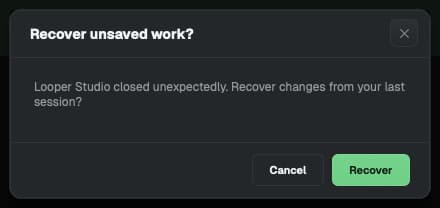
When Looper Studio opens after a crash, it can show Recover unsaved work? with the text “Looper Studio closed unexpectedly. Recover changes from your last session?”
- Click Recover to open the last song you had open, with the changes from your last session.
- If you do not recover, the app opens as usual and deletes the recovery copies.
The app asks only once. It does not ask again at the next start, whatever you choose.
The app crashed and did not offer to recover your work
The app saves recovery copies only for a song that you saved at least once. While the song has unsaved changes, it saves a recovery copy every 60 seconds and keeps the last 10.
- Save a new song once with ⌘S (Ctrl+S on Windows and Linux) as soon as you start it.
- To return to an earlier state of a song, use Save Points. Choose File → Save Points…, or click the clock in the title bar. See Save points and recovery.
The app closes about 10 seconds after it opens
About 10 seconds after it starts, Looper Studio scans your computer for new AU and VST3 plugins. Plugins run inside the app. If a plugin crashes during the scan, the whole app closes.
- Open Looper Studio again. The next scan skips the plugin that crashed.
- The skipped plugin does not show in the plugin list. When you add an effect to a track, open the AU / VST3 category. A line such as 1 plugin failed to load — it is hidden. shows there. Click Details to see the plugin's name.
- Update that plugin, or ask its maker for help.
After you update the plugin, try it again:
- Add an effect to a track and open the AU / VST3 category.
- On the line that says the plugins are hidden, click Retry (for example Retry 1).
- The app asks first, because a plugin that crashed before can close Looper Studio again. Click Retry.
The app scans the hidden plugins again. A plugin that loads comes back in the list. If a plugin closes the app again, the next scan skips it again.
A plugin can also crash later, for example when you open a song that uses it. If the app closes each time you open a certain song, update the plugins in that song. If it still closes, contact support.
The settings folder
Looper Studio keeps its settings outside your projects, in one folder:
| System | Settings folder |
|---|---|
| macOS | ~/Library/Looper Studio |
| Windows | %APPDATA%\Looper Studio |
| Linux | ~/.config/Looper Studio |
It holds your app settings, your audio and MIDI device setup, the recent projects list, the recovery copies, the plugin list and your chain presets. On Windows, it also holds your saved sign-in.
Do not delete this folder unless support asks you to. Your projects are not in it. They are in Documents/Looper Studio.
What to send to support
Looper Studio writes no log file. If you turned on crash reports, we already have a report of each crash, but not what you did or saw. Send these details, so that we can help you fast:
- The app version. Choose Help → About Looper Studio. Copy the Version line.
- Your system. The operating system and its version, and your computer model.
- Your audio interface and any MIDI devices.
- What you did just before the problem, and what you saw. Quote any message exactly.
- A crash report, if the app closed:
Open the Console app and click Crash Reports. Find the newest report for Looper Studio. The files are also in ~/Library/Logs/DiagnosticReports. Attach the newest file.
Open Event Viewer and go to Windows Logs → Application. Find the newest Application Error for Looper Studio.exe. Copy the text from its General tab.
Open a terminal and start the app with looper-studio. Do the steps that cause the problem. Copy all the text from the terminal.
Contact us
- Email: support@looper.studio
- In the app: choose Help → Send Feedback…. It opens the contact page, looper.studio/contact.
- Community: ask other musicians at community.looper.studio.
- Service status: if sign-in, licensing or Cloud Sync fails for you, check status.looper.studio.
Cloud Sync Issues
Fix Cloud Sync messages: offline, sign-in, sync that waits for playback to stop, low disk space, a project changed on two devices, and server errors.
Crash Reports
Turn automatic crash reports on or off, what a report holds and never holds, who receives it, how long it is kept, and how to ask for deletion.