Cloud Sync Issues
Fix Cloud Sync messages: offline, sign-in, sync that waits for playback to stop, low disk space, a project changed on two devices, and server errors.
Cloud Sync tells you its state in two places:
- The sync icon in the title bar. It shows while a project is open. Green means up to date. Grey means it is working or waiting. Red means it needs you. Hold the pointer over a red icon to read the reason. A small download badge means that newer changes from the cloud are ready. Click the icon to apply them.
- Settings → Cloud Sync, under This project. A status line shows the state of the open project, or a message.
Most messages below show in both places. For how sync works, see Cloud Sync.
There is no sync icon, or Settings → Cloud Sync offers a subscription
Settings → Cloud Sync says Cloud Sync comes with a subscription, or as an add-on to a perpetual license., with a See plans or Sign in button. The sync icon shows only when your account can use Cloud Sync.
- Check your plan. Cloud Sync comes with a subscription, or with the Cloud Sync add-on next to a perpetual license. The free trial does not include it. See looper.studio/pricing.
- If you just bought it, quit Looper Studio and open it again while you are online. The app reads your plan when it starts.
- A project syncs only after you choose Keep in Sync in its ⋯ menu on Home.
“Sign in to sync” or “Sign in with cloud sync access to continue”
The app is not signed in, or the account cannot use Cloud Sync. Sign in with the account that has the subscription or the add-on. See Sign-in and license.
“Cloud sync requires an active subscription”
The server refused the sync because the account has no Cloud Sync plan now. The plan may have ended. Check Billing at looper.studio/dashboard. Your projects stay on your computer.
You are offline
You see one of these:
- You appear to be offline — sync will retry when reconnected
- Reconnect to resume sync. Queued changes remain on this device.
- Saved locally. Sync was requested and will retry after reconnecting.
- Couldn't sync your changes - the local copy was kept. Try again when you're back online.
Your work is safe on this computer. Connect to the internet. Sync starts again by itself. To start it at once, open Settings → Cloud Sync and click Force sync.
Sync waits until you stop playing
You see one of these:
- Stop playback or recording to synchronize this project
- Can't pull while playing or recording — stop the transport first
- Local work changed during sync. Save changes or stop playback, then retry.
Sync does not change a project while it plays or records. Stop the transport and save with ⌘S (Ctrl+S on Windows and Linux). Sync then continues. If a message stays, click the sync icon, or Force sync in Settings → Cloud Sync.
“Save the project before syncing”
A project syncs only after you save it once. Press ⌘S (Ctrl+S on Windows and Linux). If you see Save local changes successfully before syncing, the last save failed. Save again, and check that the disk has free space.
Your disk is almost full
You see one of these:
- Free local storage and retry sync. Existing queued changes are retained.
- Couldn't protect your local changes (low disk space or a file in use) - free space and retry Sync; do not pull yet
- Can't pull yet - your local changes aren't protected. Retry Sync first (free up disk space if needed).
Sync needs free space to keep a safe copy of your work before it changes anything.
- Free some disk space. To delete old takes you do not need, open Settings → Storage.
- Click Force sync in Settings → Cloud Sync.
- Do not pull an older version from the cloud until the sync succeeds.
The project changed on two devices
You edited the same project on two computers before they synced. Sync keeps every version and asks you to choose one. The status says Choose a shared version, or Versions changed on more than one device. Every version is retained.
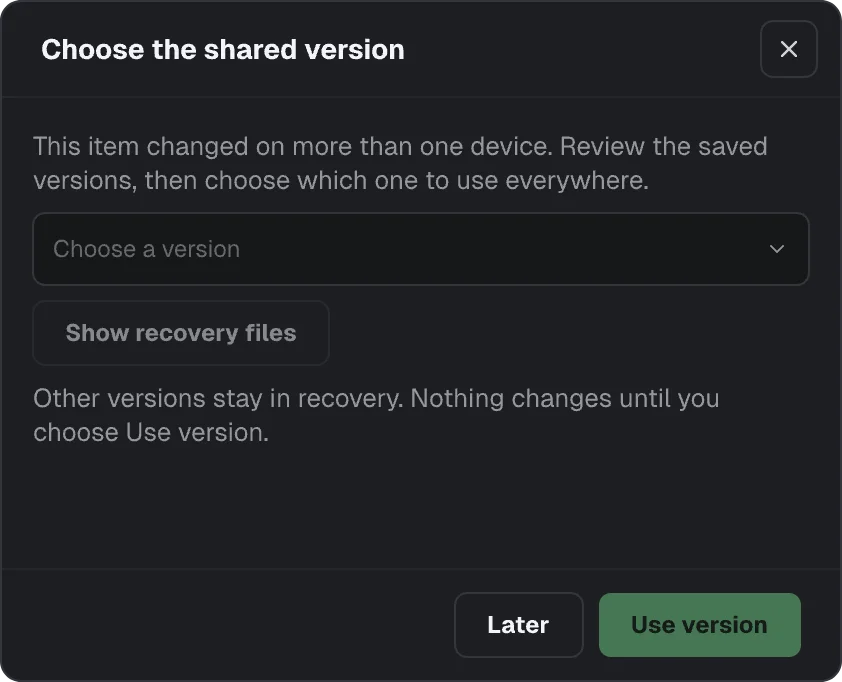
The Choose the shared version dialog opens:
- Open the Choose a version menu and pick a version. Each one shows when it synced.
- To see the files first, click Show recovery files.
- Click Use version. That version becomes the shared version on every device. The other versions stay in recovery.
To decide later, click Later. Nothing changes until you click Use version.
Some projects show a different dialog. Its title names the project, for example “Sunset Set” changed on two devices. It has three buttons:
- Keep this device's version replaces the cloud copy. The other device's version stays in the version history.
- Keep the other device's version replaces the unsynced edits on this device with the cloud copy.
- Keep both saves this device's version as a separate project, then takes the other device's version.
“Also open on another device”
Settings → Cloud Sync shows this when the same project is open on another device. It is a hint, not a lock. You can keep working. To avoid two versions, close the project on the other device before you edit here.
“Too many sync requests — please wait a moment”
The app sent many requests in a short time. Wait a minute. Sync starts again by itself.
“Cloud storage quota exceeded”
Your cloud storage is full. Settings → Cloud Sync shows how much you use under Cloud storage.
- On Home, open the ⋯ menu of a project that you do not need in the cloud and choose Remove from Cloud. The project stays on this computer.
- Click Force sync.
If you see Cloud sync has reached its database capacity limit. Your local changes are safe; free cloud data or contact support., remove projects from the cloud or contact support.
“Cloud storage is not available yet”
The cloud service has a problem. Your work stays on this computer. Check status.looper.studio and try again later.
The cloud project was deleted
You see This cloud project was deleted. Duplicate the local project to sync a new cloud copy., or The cloud project was removed; local work is retained. Somebody removed the project from the cloud on another device. Your local copy is safe.
To sync it again, open the project's ⋯ menu on Home and choose Duplicate. Then choose Keep in Sync for the copy.
“This project has duplicate local copies”
The message continues with resolve them before syncing. Or you see Locate one local copy before syncing. Two folders on this computer hold the same project. Keep one of them, and move the other out of Documents/Looper Studio/Projects. Then sync again.
“Sync recovery is required. Keep the local files and recovery copies, then retry.”
Sync found a problem it cannot fix alone. Do not delete any project files or recovery copies. Click Force sync. If the message stays, contact support. See Crashes and getting help.
Another error message
Some errors come from the server, for example a message that ends with failed (HTTP 500).
- Click Force sync in Settings → Cloud Sync.
- Check status.looper.studio.
- If the error stays, email support@looper.studio with the exact message.
A project does not show on your other device
- On the first device, open the project's ⋯ menu on Home. If the menu shows Keep in Sync, the project is not in the cloud yet. Choose Keep in Sync, and wait until the sync finishes.
- On the other device, open Home. Projects that are only in the cloud show there. Open the project's ⋯ menu and choose Sync to This Device.
MIDI Issues
Fix MIDI problems: a controller that does not show or respond, silent MIDI tracks, mappings that do not fire, stuck notes and MIDI clock sync.
Crashes and Getting Help
Recover unsaved work after a crash, fix a crash during the plugin scan, find the settings folder and crash reports, and contact Looper Studio support.