Save and Recover Work
Make save points before big edits and restore them later. Learn how autosave works, what auto-save on quit does, and how to recover work after a crash.
Looper Studio has three ways to protect your work:
- Save points: snapshots of a song's arrangement that you make and name yourself.
- Autosave: a copy of your changes every minute, for crash recovery.
- Auto-save on quit: the app saves the open song when you quit.
Save points
A save point stores the arrangement of the open song: its tracks, clips, effects and routing. Make one before a big edit. If the edit goes wrong, restore the save point.
A save point stores the arrangement, not the audio. If you delete a recording, a save point does not bring it back.
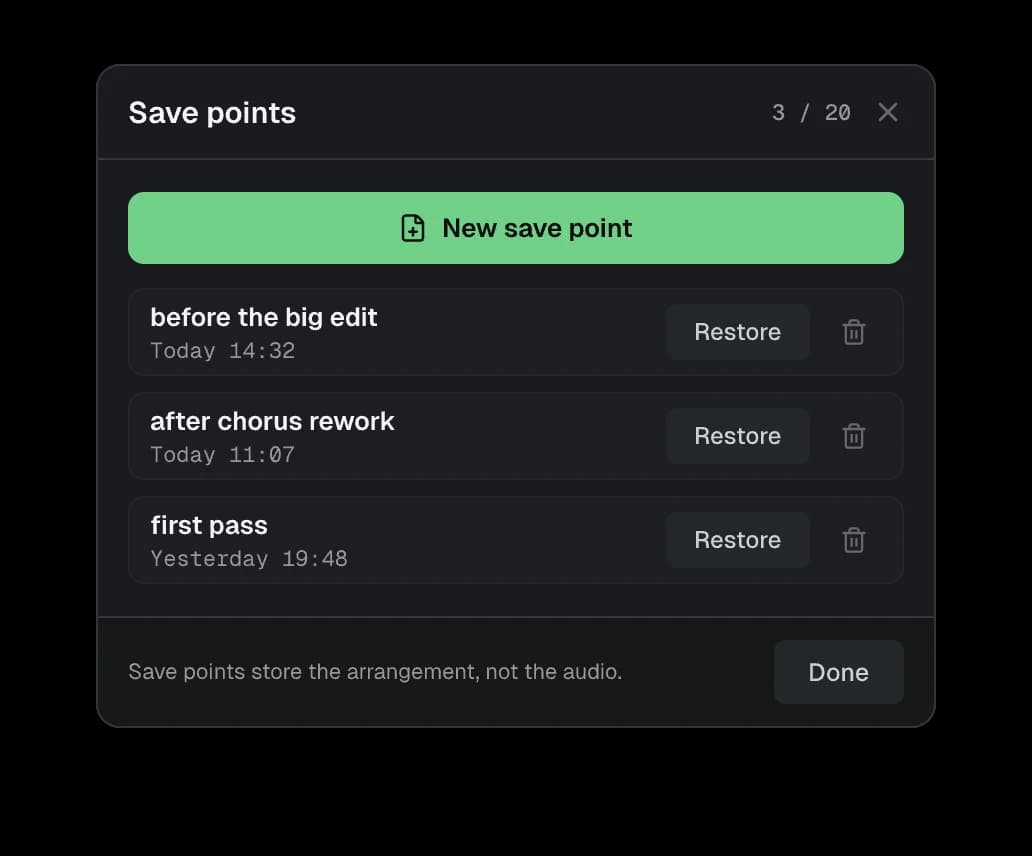
Make a save point
- Choose File → Save Points…, or click the clock button in the title bar. Its tooltip is Save points.
- Click New save point.
- Type a name, or keep the suggested one, for example Save point 3. Click Save.
- Click Done.
- Press ⌘S (Ctrl+S on Windows and Linux). The save points are stored in the song file.
A new or deleted save point is a change to the song, like any edit. Auto-save on quit and the autosave keep it.
Each song can have up to 20 save points. The window title shows how many you have, for example Save points 3 / 20. When you have 20, the window warns you: 20 of 20 — saving a new point will remove the oldest. A new save point then deletes the oldest one.
Restore a save point
- Open the Save points window.
- Click Restore on the save point.
- The app asks you to confirm. Click Restore.
The restore replaces the current arrangement. Recordings that you made after the save point stay in the song. To go back, choose Edit → Undo.
To delete a save point, click its trash button. The app does not ask first. The arrangement does not change.
Autosave
While a song has unsaved changes, the app writes a recovery copy every 60 seconds. It keeps the 10 newest copies. Autosave never writes over your song file. It keeps its copies in a separate place, only for crash recovery.
Autosave starts after the song is saved once. A song that you make with New Song is saved at once, so autosave covers it from the start.
The app also saves the open song when you open another song or go back to Home.
Auto-save on quit
Settings → General → Startup & saving → Auto-save on quit is on by default. When you quit, the app saves the open song without a question.
If you turn it off and quit with unsaved changes, the app asks Save changes before quitting? Choose Save, Don't Save or Cancel.
Recover work after a crash
If Looper Studio closes unexpectedly, the next launch asks Recover unsaved work?
- Click Recover to open the song with the changes from the last autosave. The app then saves them into the song.
- Click Cancel, or close the prompt, to start without them.
The app asks only once. After you choose, it deletes the recovery copies, so you cannot recover them later.
The recovery works for the song that you used last, and only if the autosave is newer than the song file.
For other crash problems, see Crashes and getting help.
Export Audio
Export a song to WAV, AIFF or FLAC. Choose Mix, Stems or Clips, set sample rate and bit depth, normalize the mix, and pick the folder to save to.
Use Song Templates
Mark a song as a template, then start new songs from it with the same tracks, effects, routing, tempo and recordings. Templates belong to a project.