Record MIDI
Record MIDI. Add a MIDI track, choose LS Drums, LS Bass or a plugin instrument, set the MIDI source and quantize, use the Play drawer, and edit notes.
A MIDI track records notes from a MIDI keyboard or controller, or from the on-screen keys and pads of the Play drawer. An instrument on the track plays the notes.
MIDI recording uses rec clips, the same as audio recording. If you have not recorded before, read Record your first loop and Rec and loop clips first.
Set up the track
Turn on your MIDI keyboard
Connect your keyboard or controller. Open Settings → MIDI and turn on the keyboard under Inputs. MIDI inputs are off until you turn them on.
If you only use the Play drawer, skip this step.
Add a MIDI track
Click the + above the track headers and choose Track…. In the Add Track dialog, click MIDI. You can also click Add Track in the mixer.
The new track is named MIDI 1 (then MIDI 2, and so on). It is armed, so its R is already lit. Its MIDI source is All MIDI Inputs.
⌘T (Ctrl+T on Windows and Linux) adds an audio track, not a MIDI track.
Choose an instrument
Open the mixer with ⌘M (Ctrl+M on Windows and Linux) and click Extended. On the track's strip, click INSTRUMENT. You can also open the Play drawer and click Instrument.
The instrument list shows:
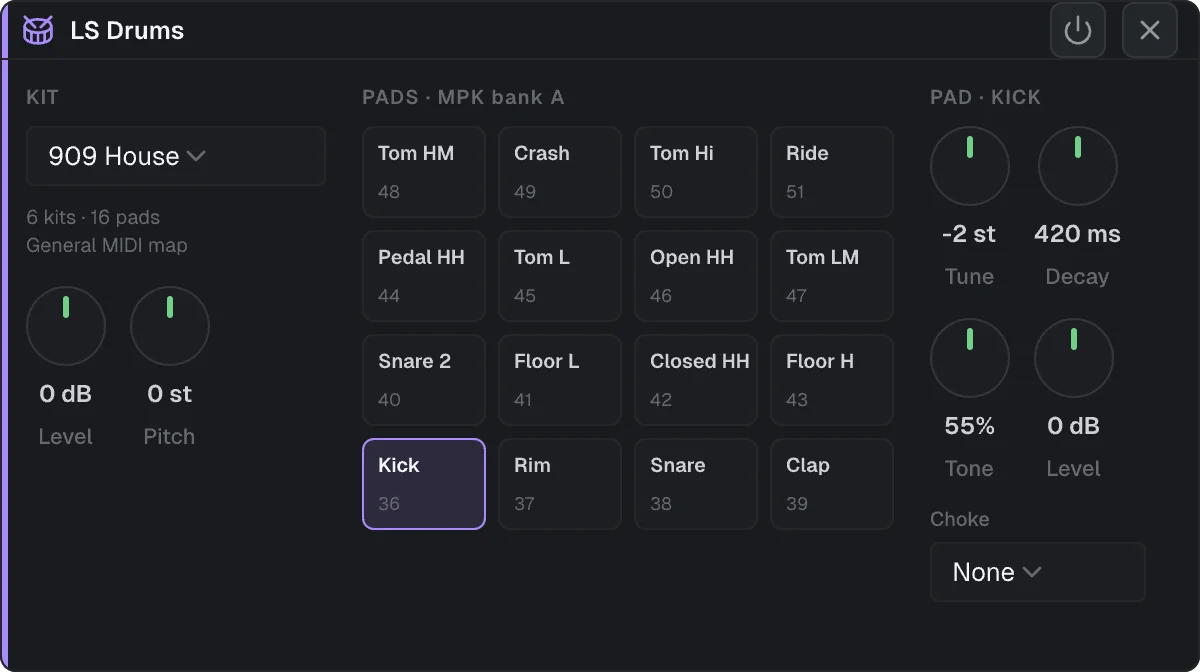
- BUILT-IN: LS Drums, a drum instrument with 16 pads, and LS Bass, a synth bass. Click Choose.
- AU / VST3 INSTRUMENTS: the instrument plugins on your computer. On Windows and Linux, the list shows VST3 plugins only.
For the sounds and controls of the built-in instruments, see Instruments.
Check the MIDI source and quantize
On the track header, click ⋯ and choose Track settings…. The Inspector opens on the Track section.
- Under ROUTING, the MIDI source menu chooses where the track gets its notes: None, All MIDI Inputs, or one MIDI device. If you have more than one controller, choose one device so that each track hears only its own controller.
- Under QUANTIZE, input quantize moves each recorded note to the nearest grid line. Choose Off, or a value from 1/2 to 1/32. A value with . is dotted, and a value with T is a triplet. New tracks use 1/16.
Hear the instrument
To hear the instrument while you play with the transport stopped, click I (input monitoring) on the track. While you record into a rec clip, you hear your notes with I off.
Record
- Choose the Record tool (press 2) and drag on the MIDI track to draw a rec clip. You can also hold ⌘ (Ctrl on Windows and Linux) and drag.
- Click the rewind button in the bottom bar to move the playhead to the start.
- Press R to start recording. Play when the playhead reaches the rec clip.
- Press Space to stop.
Notes are recorded only inside the rec clip. A note that you play just before the clip starts goes onto the first beat of the clip. Capture window in Settings → MIDI sets how early that note can be: Off, 50 ms, 100 ms (the default), 250 ms or 500 ms.
Looper Studio records notes only. You hear the sustain pedal while you play, but the pedal, pitch bend, the mod wheel and other controller messages are not recorded.
Play without a MIDI keyboard: the Play drawer
The Play drawer has on-screen pads and keys. Notes from the drawer are monitored and recorded the same way as notes from a MIDI keyboard.
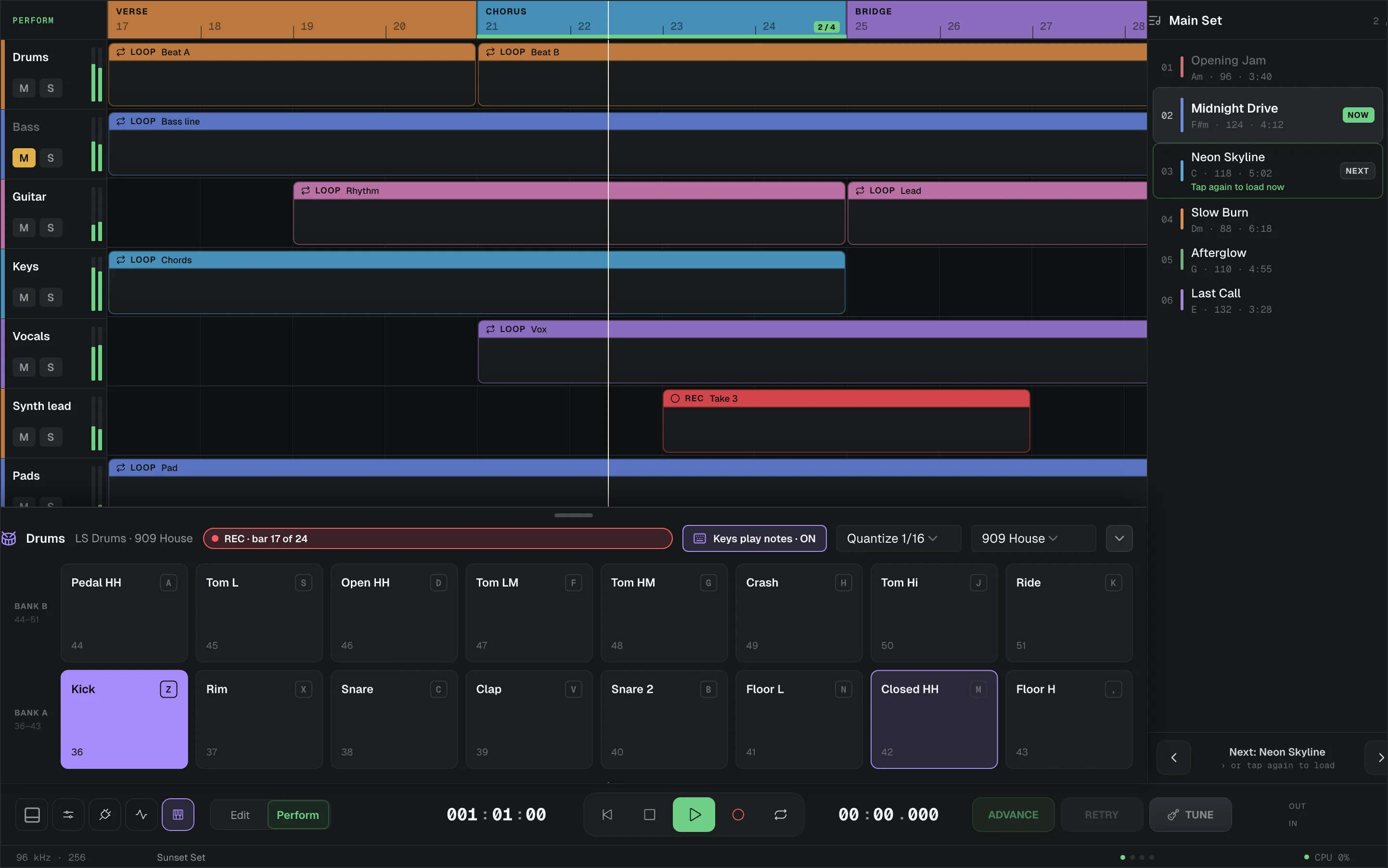
To open it, click the piano button in the bottom bar. The drawer plays the armed MIDI track whose rec clip comes next under the playhead. To play a different MIDI track, click the track name in the drawer header and choose the track.
- With LS Drums, the drawer shows 16 pads in two rows, BANK B above BANK A. Each pad has the name of its sound in the current kit.
- With any other instrument, the drawer shows a keyboard of two octaves. The arrows move it down or up by one octave.
- The Quantize menu in the header sets the input quantize of the track.
- While the track records, the header shows REC · bar and the bar number.
When no MIDI controller is connected, the drawer also opens by itself:
- when you arm a MIDI track, and
- one bar before the playhead reaches a rec clip on an armed MIDI track. It closes again after the clip.
The Play drawer and its piano button are hidden when Built-in instruments is off in Settings → General.
Play with your computer keyboard
Click Keys play notes in the drawer header, so that it reads Keys play notes · ON. While the drawer is open and this is on, letter keys play notes instead of their usual shortcuts.
With the keyboard:
- A S D F G H J K play the white keys, from the lowest C up one octave.
- W E T Y U play the black keys.
- Z moves the keyboard down one octave, and X moves it up one octave.
With the LS Drums pads:
- Z X C V B N M , play the bottom row (BANK A).
- A S D F G H J K play the top row (BANK B).
Esc still works as All Stop and silences every note. When you close the drawer or turn Keys play notes off, the letter keys run their usual shortcuts again.
Edit the notes
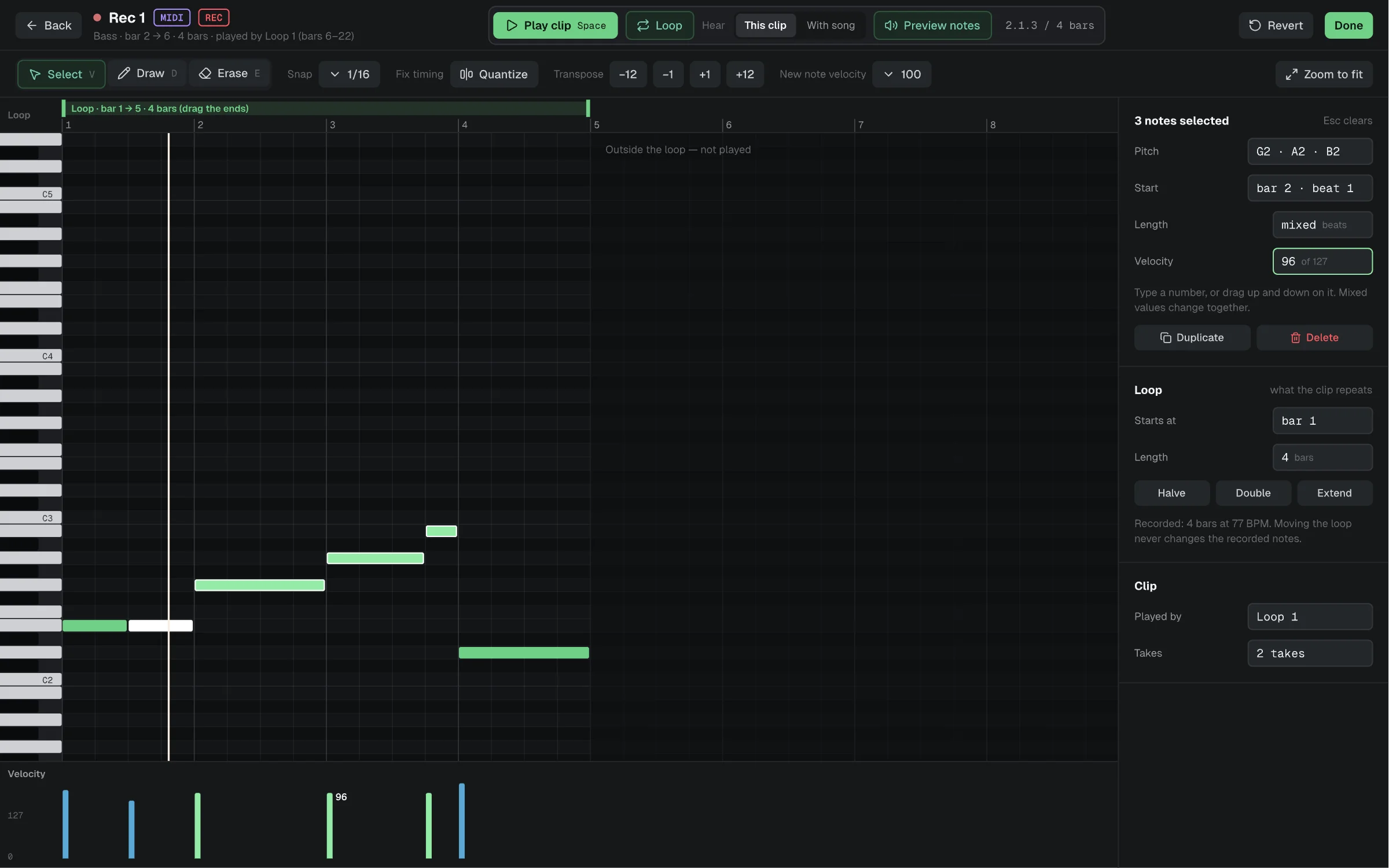
To open the note editor, select the clip and click Edit Notes… in the Clip section of the Inspector. You can also right-click the clip and choose Edit notes…. Both appear only when the clip has notes.
The Piano Roll has three tools:
| Tool | Key | What it does |
|---|---|---|
| Select | V | Click a note to select it. Shift-click, or ⌘-click (Ctrl-click on Windows and Linux), to add notes to the selection. Drag a note to move it, or drag its right edge to change its length. |
| Draw | D | Click an empty place to add a note. The note is one grid step long (1/16 when Snap is Off). |
| Erase | E | Click a note to delete it. |
- Snap sets the grid. It starts at 1/16.
- Quantize moves the selected notes to the snap grid. With no selection, it moves all notes.
- Transpose moves the selected notes (or all notes) by −12, −1, +1 or +12 semitones.
- New note sets the velocity of the notes you draw.
- Zoom to fit shows the whole clip.
- Drag in the velocity lane at the bottom to change the velocity of notes.
- The panel on the right shows Pitch, Start, Length and Velocity of the selected notes, with Duplicate and Delete. Delete on your keyboard also deletes the selected notes.
- Play clip (or Space) plays the clip. Hear chooses This clip or With song. Preview notes plays each note as you click, draw or move it.
Each edit is one undo step. Revert puts back the notes the editor opened with. To close the editor, click Done or Back, or press Esc.
A loop clip plays the notes of its rec clip. When you edit those notes, every loop clip that plays them changes too.
Related
Record Your First Loop
Record audio in the Arrangement. Draw a rec clip, check the input, set a count-in, press R to record and Space to stop, then repeat it with a loop clip.
Performing
Guides for live shows. Build a setlist and play it in Perform mode, hold parts with loop regions, keep a backup take, and control the app by footswitch.