Import Audio and MIDI
Import audio and MIDI files. Drag WAV, AIFF, FLAC, Ogg or MP3 files onto a track, paste audio, use the Media tab, and import or export .mid files.
You can bring audio files and MIDI files into a song. Each imported file becomes a rec clip on a track. See Rec and loop clips.
Files you can import
- Audio: WAV, AIFF, FLAC and Ogg Vorbis on every platform. MP3 on macOS and Windows. M4A on macOS. For details, see Audio formats.
- MIDI: Standard MIDI Files that end in
.midor.midi.
Looper Studio converts each audio file to the sample rate it runs at.
Audio files go on audio tracks, and MIDI files go on MIDI tracks. Looper Studio does not accept a file on the wrong kind of track.
Drag audio files onto a track
- Open the song in the Arrangement.
- Drag an audio file from your file manager, for example Finder on macOS or File Explorer on Windows.
- Hold the file over an audio track. The track row highlights, and a line shows where the clip will start.
- Release the mouse button. The clip starts at the beat under the pointer, snapped to the grid.
If the song has no tracks, Looper Studio shows "Add a track first to import a file".
Loops with tempo information
Many loop libraries store the tempo of a loop inside the file, in an ACID chunk. When a file has this information, Looper Studio:
- sets the clip length to the length of the loop in beats, and
- re-times the audio to the song tempo.
It then turns on Follow tempo for the clip. You find it under Warp in the Clip section of the Inspector. While Follow tempo is on, the clip changes with the song tempo. To hear the file at its original speed, turn Follow tempo off.
A file with no tempo information plays at its original speed.
Paste audio from another app
- Copy an audio file or some audio:
- macOS: in Finder or in another app.
- Windows: copy an audio file in File Explorer, or copy audio in another app.
- Linux: copy the full path of an audio file as text, for example
/home/me/loops/beat.wav. Some file managers do this when you copy a file. Others do not.
- In Looper Studio, choose Edit → Paste Audio from Clipboard.
The clip goes on the selected track (or the first track), at the playhead. The menu item is greyed out when the clipboard holds no audio. On Windows, a copied file that is not audio turns the item on, and the app then says No audio on the clipboard to paste.
⌘V pastes clips that you copied in Looper Studio. It does not paste audio from other apps.
On iPad (coming soon), you can AirDrop an audio file to Looper Studio, or open it in Looper Studio from another app's share sheet. The clip goes on the selected track, at the playhead.
Use the Media tab
The Media tab in the sidebar keeps a list of the audio files you use often. It points to your files where they are on disk. It does not copy, move or delete them.
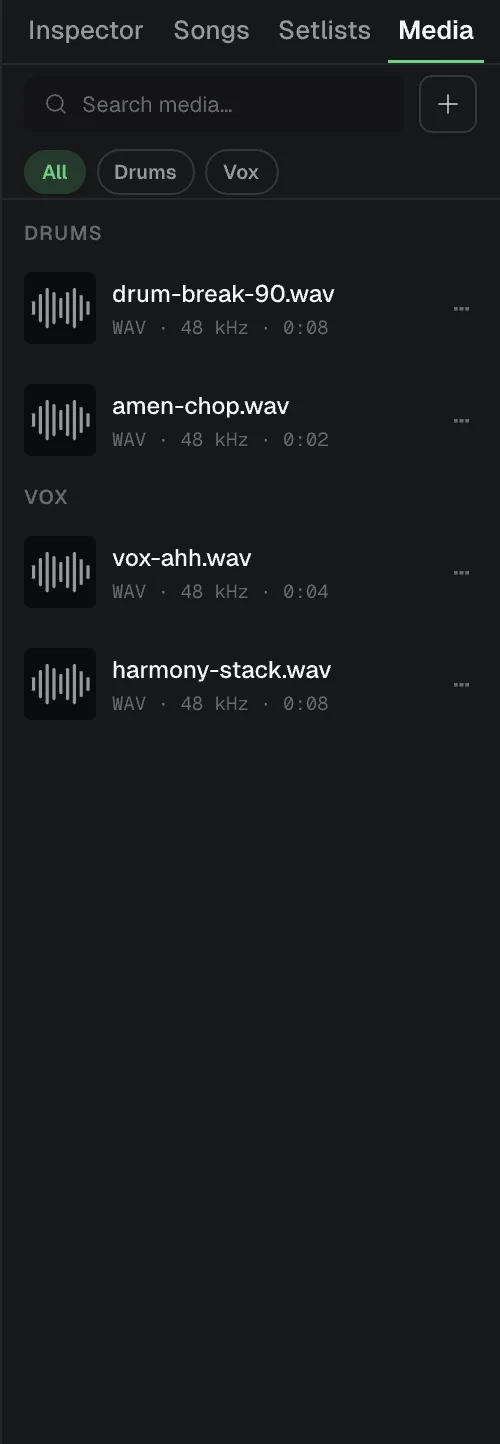
- Add files: click + at the top of the tab, then choose Add folder... or Import file.... A folder you add stays in the list with all its audio files. Choose Rescan folders to find files that you put in your folders later. The same menu has a Remove item for each folder. When the tab is empty, you can also click Import audio....
- Find a file: type in Search media…, or click a folder name above the list. Click All to show every file.
- Listen: click a file to hear it.
- Use a file: drag it from the list onto an audio track.
- More: right-click a file, or click its ··· button, for Reveal in Finder (Show in Explorer on Windows, Show in File Manager on Linux) and Remove from pool.
Remove from pool takes the file off the list only. The file stays on disk, and clips you made from it keep playing.
A file that was moved or deleted shows as Missing.
Import a MIDI file
You can import a MIDI file in two ways:
- Drag it onto a MIDI track. The clip starts at the beat under the pointer.
- Choose File → Import MIDI… and choose the file. The clip goes on the first MIDI track of the song, at the start of the song.
If the MIDI file has several tracks, Looper Studio puts all their notes into one clip. The clip length is rounded up to whole bars. Only the notes are imported. MIDI channels and controller data are not kept.
To record your own MIDI, see Record MIDI.
Export MIDI
Choose File → Export MIDI… and choose where to save the file. Looper Studio writes one .mid file. It has one track for each recorded MIDI clip in the song, with the song tempo and time signature. Each track starts at the beginning of the file, not at the position of its clip in the song. All notes are on MIDI channel 1.
To export audio, see Export audio.
Related
Use the Mixer
Mixer guide. Set track, bus and Master levels, pan, mute and solo, bypass effects, add buses, and edit inputs, sends, routes and Direct Out.
Export Audio
Export a song to WAV, AIFF or FLAC. Choose Mix, Stems or Clips, set sample rate and bit depth, normalize the mix, and pick the folder to save to.