Instruments
LS Drums and LS Bass reference: kits, sounds, pads, choke groups and every control. Put AU, VST3 or AUv3 instruments in a MIDI track's instrument slot.
An instrument turns MIDI notes into sound. Looper Studio has two built-in instruments, LS Drums and LS Bass. Both are synthesized, so they need no sample files. You can also use third-party instruments.
To play and record an instrument, see Record MIDI.
Where instruments go
An instrument goes in the instrument slot of a MIDI track. Each MIDI track has one instrument slot.
- In the plugin drawer, the instrument card comes first, before the PRE FX chain. The instrument's sound then goes through the track's effects. See Effects and plugins.
- In the mixer, a MIDI track's strip has an INSTRUMENT row.
- Audio tracks, buses and Master have no instrument slot. If you try to put an instrument there, the app says Instruments go on a MIDI track.
Add an instrument
- Select the MIDI track.
- Open the Add popover in one of these ways:
- In the mixer, click the strip's empty INSTRUMENT row.
- In the plugin drawer, click +. On a MIDI track with no instrument, + opens the instruments list.
- In the Play drawer, click Instrument.
- The header says Instrument for and the track name. Choose a category: All, Recent, Built-in or AU / VST3 (AUv3 on iPad).
- Click Choose on a built-in instrument, or Add on a third-party one. You can also double-click it.
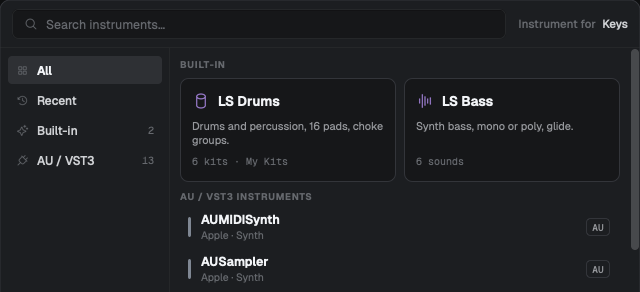
You can type in Search instruments… to find an instrument by name.
Replace or remove an instrument
- In the mixer, right-click the INSTRUMENT row and choose Replace… or Remove.
- In the plugin drawer, click × on the instrument card.
- Adding a new instrument replaces the one in the slot.
For a third-party instrument, click the filled INSTRUMENT row in the mixer to open the instrument's own window.
Play an instrument
- Play it from a MIDI keyboard or pad controller. The track must listen to that MIDI input.
- Click Play drawer (the piano icon) in the bottom bar. It has pads and keys that play the armed MIDI track. See Record MIDI.
- Tap a pad on the LS Drums card, or a key on the LS Bass card, to hear it.
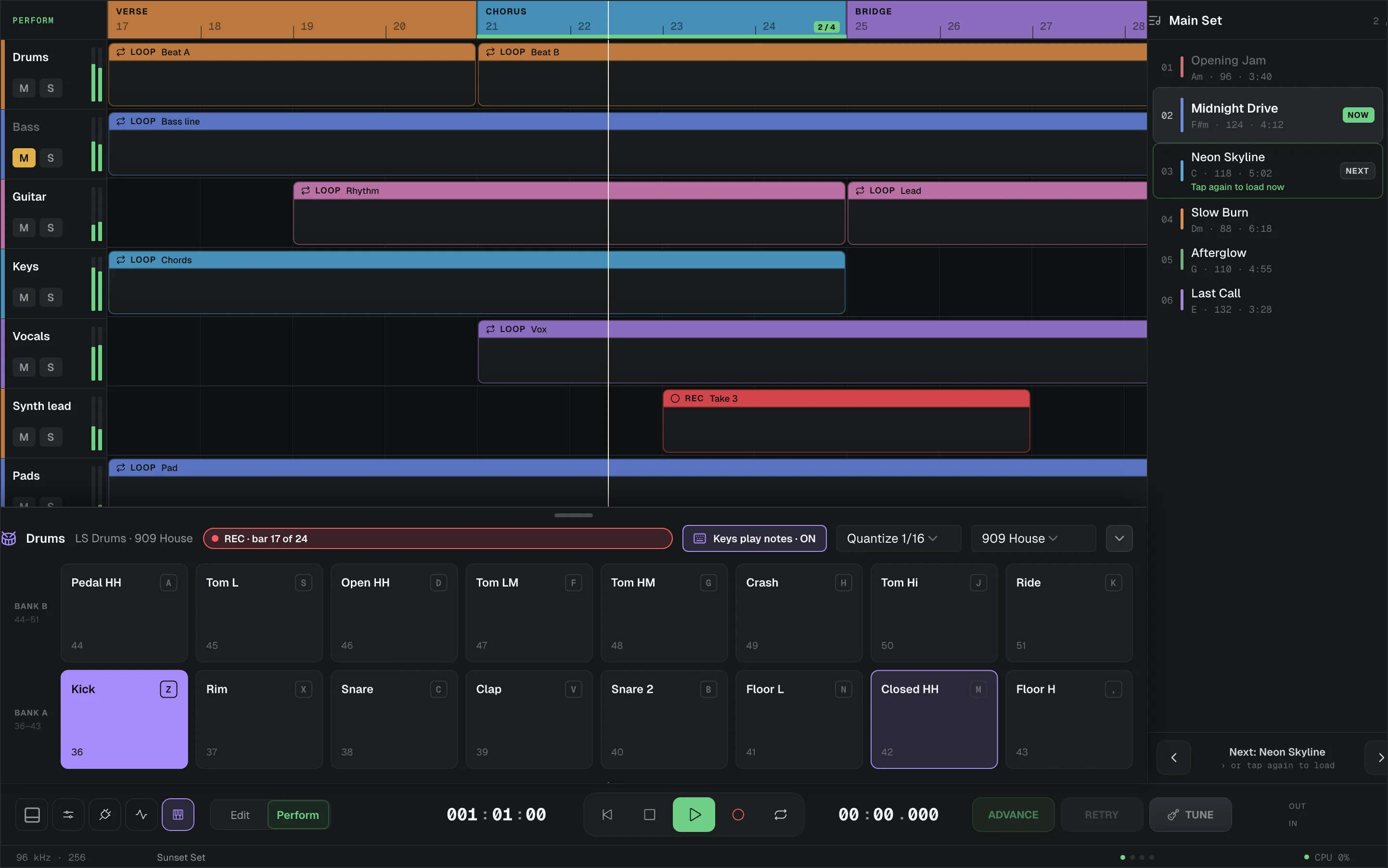
LS Drums
Drums and percussion on 16 pads, with choke groups.
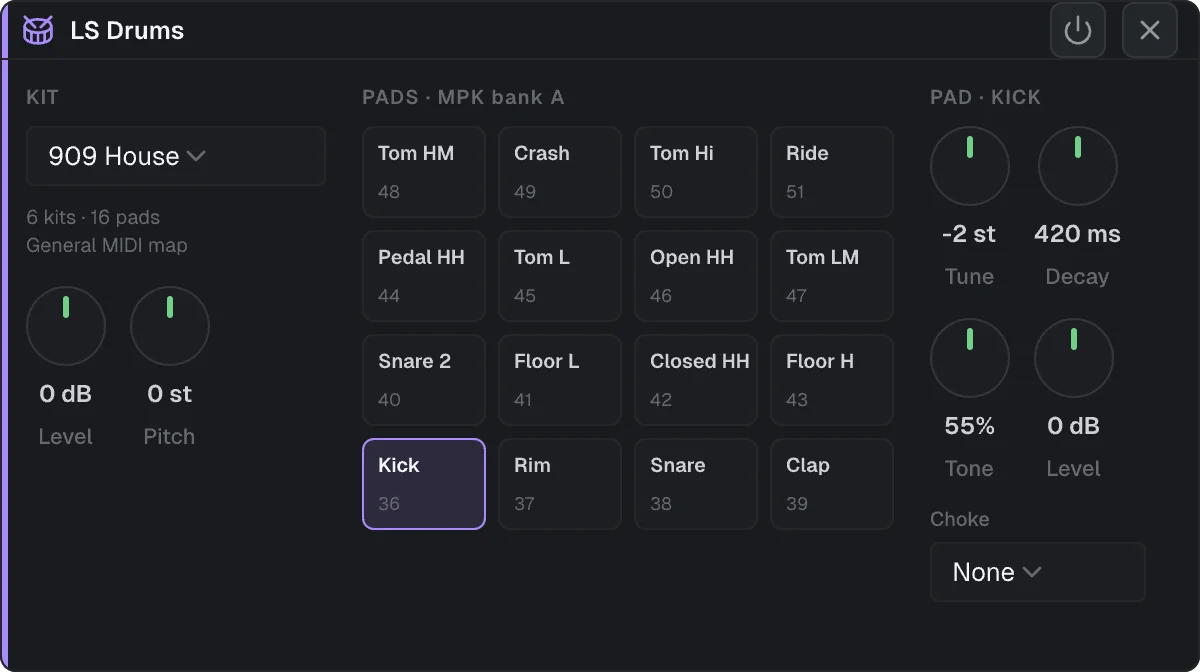
The card has three parts:
- KIT: the kit picker, the pad layout picker, and the kit Level and Pitch.
- PADS: 16 pads. The heading shows which notes play them, for example PADS · GM 36–51. Click a pad to hear it and to select it. A pad flashes when it plays.
- PAD: the controls of the selected pad, for example PAD · KICK.
Kits
| Kit | Tag line |
|---|---|
| 808 Classic | Hip-hop · R&B |
| 909 House | House · techno |
| Lo-Fi Hip-Hop | Soft · dusty |
| Trap | 808 · hat rolls |
| Electro | Synth-pop · 80s |
| Percussion | Conga · shaker · cowbell |
A new LS Drums starts on 808 Classic. When you pick a kit, it sets all 16 pads to that kit's values.
The kit menu also lists Rock and Jazz brushes under LATER — recorded kits. They are greyed out and marked Needs samples. You cannot pick them yet.
The kit menu
Click the kit picker to open the kit menu.
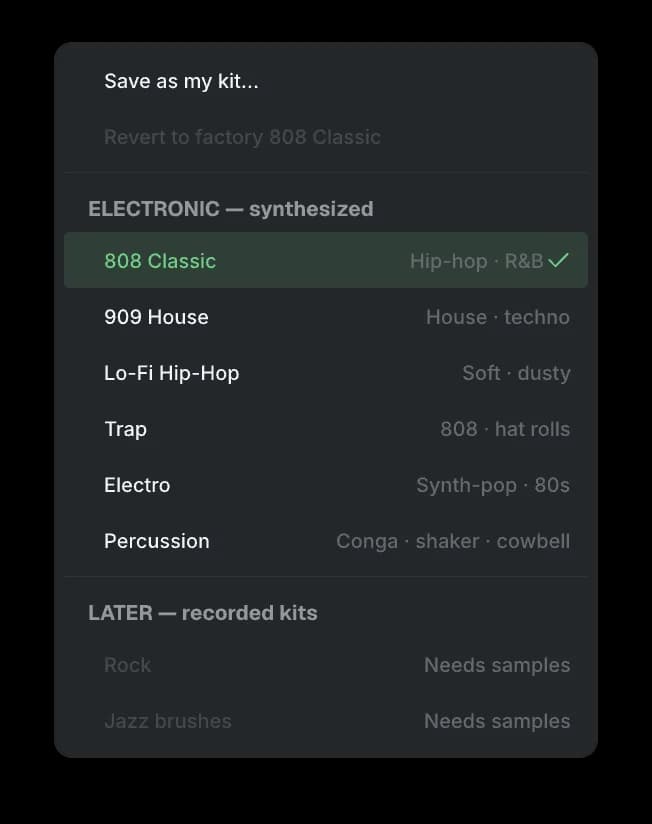
| Item | What it does |
|---|---|
| Save as my kit… | Saves the current pad settings as your own kit. Type a Name and click Save. |
| Revert to factory … (or Revert to … for your own kit) | Drops your changes and loads the kit's saved values again. It is available when you changed the kit. |
| MY KITS | Your own kits. Each one shows the factory kit it is built on. |
| ELECTRONIC — synthesized | The six factory kits, with their tag lines. |
| LATER — recorded kits | Kits that need samples. Not available yet. |
When you change a pad, the menu shows changed next to the current kit, and the kit picker shows a dot.
Your changes to a kit are saved with the song. A factory kit never changes.
My Kits are saved on this computer, in the app's settings folder. Every song on this computer lists them. A song that uses one of your kits keeps its own copy of the pad settings, so it plays the same on another computer.
Pads
The pads play the General MIDI drum notes 36 to 51.
| Pad | Note | 808 Classic, 909 House, Lo-Fi Hip-Hop, Trap, Electro | Percussion |
|---|---|---|---|
| 1 | 36 | Kick | Conga Lo |
| 2 | 37 | Rim | Clave |
| 3 | 38 | Snare | Conga Hi |
| 4 | 39 | Clap | Tambourine |
| 5 | 40 | Snare 2 | Conga Slap |
| 6 | 41 | Floor L | Bongo Lo |
| 7 | 42 | Closed HH | Tri Mute |
| 8 | 43 | Floor H | Bongo Hi |
| 9 | 44 | Pedal HH | Shaker |
| 10 | 45 | Tom L | Timbale Lo |
| 11 | 46 | Open HH | Tri Open |
| 12 | 47 | Tom LM | Timbale Hi |
| 13 | 48 | Tom HM | Agogo Lo |
| 14 | 49 | Crash | Cowbell |
| 15 | 50 | Tom Hi | Agogo Hi |
| 16 | 51 | Ride | Wood Block |
Choke groups
A hit on a pad in a choke group cuts every other pad in that group that still rings. This is how a closed hi-hat cuts an open one.
- In the five drum kits, Closed HH, Pedal HH and Open HH are in the Hats group.
- In Percussion, Tri Mute, Tri Open and Shaker are in the Hats group.
- All other pads start with None. Use Group 2 and Group 3 for your own groups.
LS Drums controls
| Control | Range / options | Default | Notes |
|---|---|---|---|
| Kit | The six kits, and your own kits | 808 Classic | Picks the kit. You cannot automate it. |
| Level (kit) | −60 to +6 dB | 0 dB | The output level of the whole kit. |
| Pitch (kit) | −12 to +12 st | 0 st | Tunes the whole kit. |
| Tune (pad) | −24 to +24 st | Set by the kit | Tunes the selected pad. |
| Decay (pad) | 10 ms to 5 s | Set by the kit | How long the pad rings. |
| Tone (pad) | 0–100% | Set by the kit | Darker to brighter. |
| Level (pad) | −60 to +6 dB | Set by the kit | The level of the selected pad. |
| Choke (pad) | None, Hats, Group 2, Group 3 | Set by the kit | See Choke groups. |
Use your pad controller
Your controller's pads may send other notes than 36 to 51. LS Drums can learn them. The controller is the MIDI input that the track listens to. The PADS heading then shows its name.
Choose a pad layout
Click the pad layout picker in the KIT area:
| Layout | Notes |
|---|---|
| General MIDI | 16 pads on notes 36 to 51. |
| 8 pads (compact) | The 8 most-played sounds on notes 36 to 43: Kick, Snare, Clap, Closed HH, Open HH, Tom (Tom LM), Crash and Perc (Rim). |
| Custom | The notes you taught it. |
With no MIDI controller, the menu says No MIDI controller and its items are greyed out.
Teach a pad
- Right-click a pad on the card. On iPad, touch and hold the pad.
- Choose Learn from controller. The pad says Hit a pad….
- Hit a pad on your controller. The card pad now shows that note and learned.
Press Esc to cancel.
The pad menu also has:
- Set note…: type a MIDI note from 0 to 127 for this pad. Needs a controller.
- Preview: plays the pad.
- Reset to General MIDI: puts this pad back on its General MIDI note. Needs a controller.
A pad map belongs to the controller, not to the kit or the song. It works in every song and with every kit. The app turns your controller's notes into General MIDI notes before it records them. So a recorded clip plays the same on any computer, with any controller.
LS Bass
Synth bass, mono or poly, with glide.
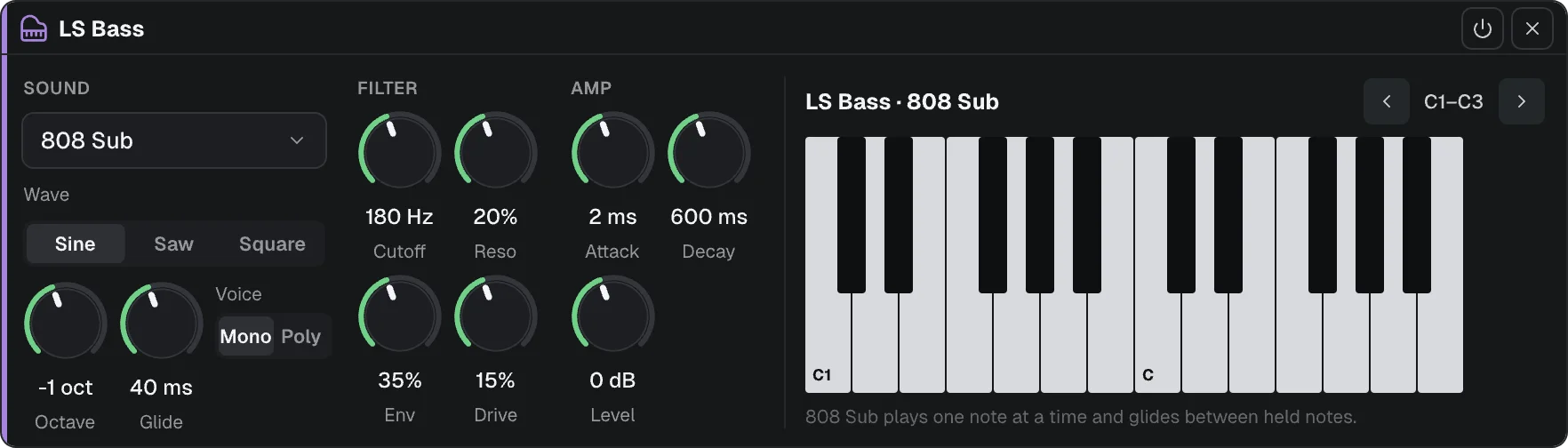
The card has three groups of controls (SOUND, FILTER and AMP) and a keyboard strip. Click a key to hear it. Use the arrows to move the keyboard up or down an octave. The line under the keys says how the sound plays. For example: 808 Sub plays one note at a time and glides between held notes.
Sounds
Click the sound picker to choose a sound. Each sound sets all the controls, except Voice.
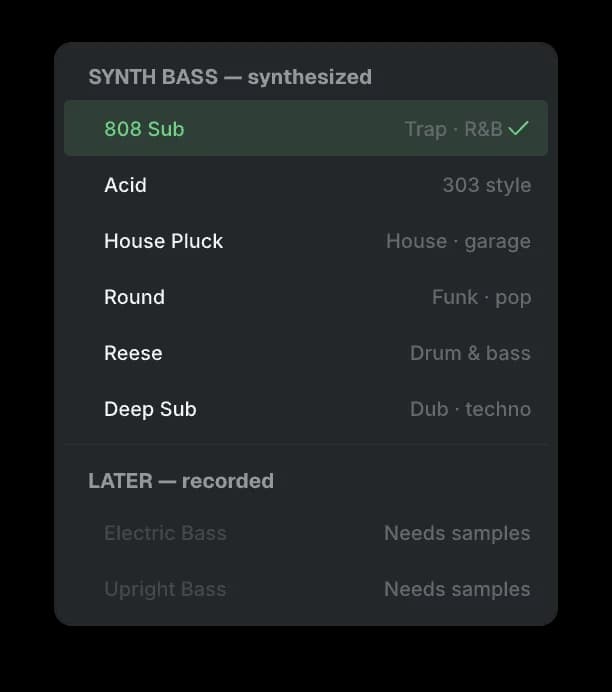
| Sound | Tag line | Wave | Octave | Cutoff |
|---|---|---|---|---|
| 808 Sub | Trap · R&B | Sine | −1 | 180 Hz |
| Acid | 303 style | Saw | 0 | 380 Hz |
| House Pluck | House · garage | Square | 0 | 520 Hz |
| Round | Funk · pop | Saw | −1 | 520 Hz |
| Reese | Drum & bass | Saw | −1 | 900 Hz |
| Deep Sub | Dub · techno | Sine | −1 | 120 Hz |
A new LS Bass starts on 808 Sub.
The sound menu also lists Electric Bass and Upright Bass under LATER — recorded. They are greyed out and marked Needs samples. You cannot pick them yet.
Your changes to a sound are saved with the song.
Mono and Poly
| Voice | How it plays |
|---|---|
| Mono | One note at a time. A note you play while you hold another key glides to the new pitch, and does not start again. A note with no key held starts fresh. Let go of the newest key and the sound slides back to the key you still hold. |
| Poly | Every key you hold sounds. Glide does nothing. |
LS Bass controls
The defaults are the 808 Sub values.
| Control | Range / options | Default | Notes |
|---|---|---|---|
| Wave (SOUND) | Sine, Saw, Square | Sine | The oscillator shape. |
| Voice (SOUND) | Mono, Poly | Mono | A new sound does not change it. |
| Octave (SOUND) | −2 to +2 | −1 | |
| Glide (SOUND) | 0 to 1000 ms | 40 ms | The slide time between held notes. Mono only. |
| Cutoff (FILTER) | 20 Hz to 12 kHz | 180 Hz | Low-pass filter. |
| Reso (FILTER) | 0–100% | 20% | Boost at the cutoff. |
| Env (FILTER) | 0–100% | 35% | How far each note opens the filter. |
| Drive (FILTER) | 0–100% | 15% | Saturation before the filter. |
| Attack (AMP) | 0.5 ms to 2 s | 2 ms | How fast a note starts. |
| Decay (AMP) | 10 ms to 5 s | 600 ms | How fast a note falls to its held level. |
| Level (AMP) | −60 to +6 dB | 0 dB | Output level. |
Third-party instruments
You can use third-party instruments in the same slot:
| Platform | Formats |
|---|---|
| Mac | Audio Units (AU) and VST3 |
| Windows | VST3 |
| Linux | VST3 |
| iPad | AUv3. The iPad app is coming soon. |
A third-party instrument card shows the maker and format, with INST. Click Open editor to open the instrument's own window. Its controls are in that window, not on the card.
For how the app finds and scans plugins, see Scanning for plugins.
Turn off the built-in instruments
Go to Settings → General → Instruments and turn off Built-in instruments. This setting is marked Experimental. It is on by default.
When it is off:
- LS Drums and LS Bass do not show when you choose an instrument. The instruments list opens on AU / VST3.
- The Play drawer button leaves the bottom bar.
- A track that already uses LS Drums or LS Bass keeps playing.
See Settings.
Effects and plugins
Built-in effects: 32 effects plus a tuner, with every control and default. PRE and POST FX chains, sidechain, A/B, chain presets, AU and VST3 plugins.
MIDI Implementation
MIDI reference. Mapping targets, Learn (CC, Note, Program Change), profiles, foot controller templates, MIDI clock in and out, recording and monitor.