Use the Mixer
Mixer guide. Set track, bus and Master levels, pan, mute and solo, bypass effects, add buses, and edit inputs, sends, routes and Direct Out.
The mixer shows one strip for each track and each bus, plus the Master. Use it to set levels, add effects and buses, and choose where each track's sound goes. To learn how tracks, buses, sends and outputs connect, see Routing.
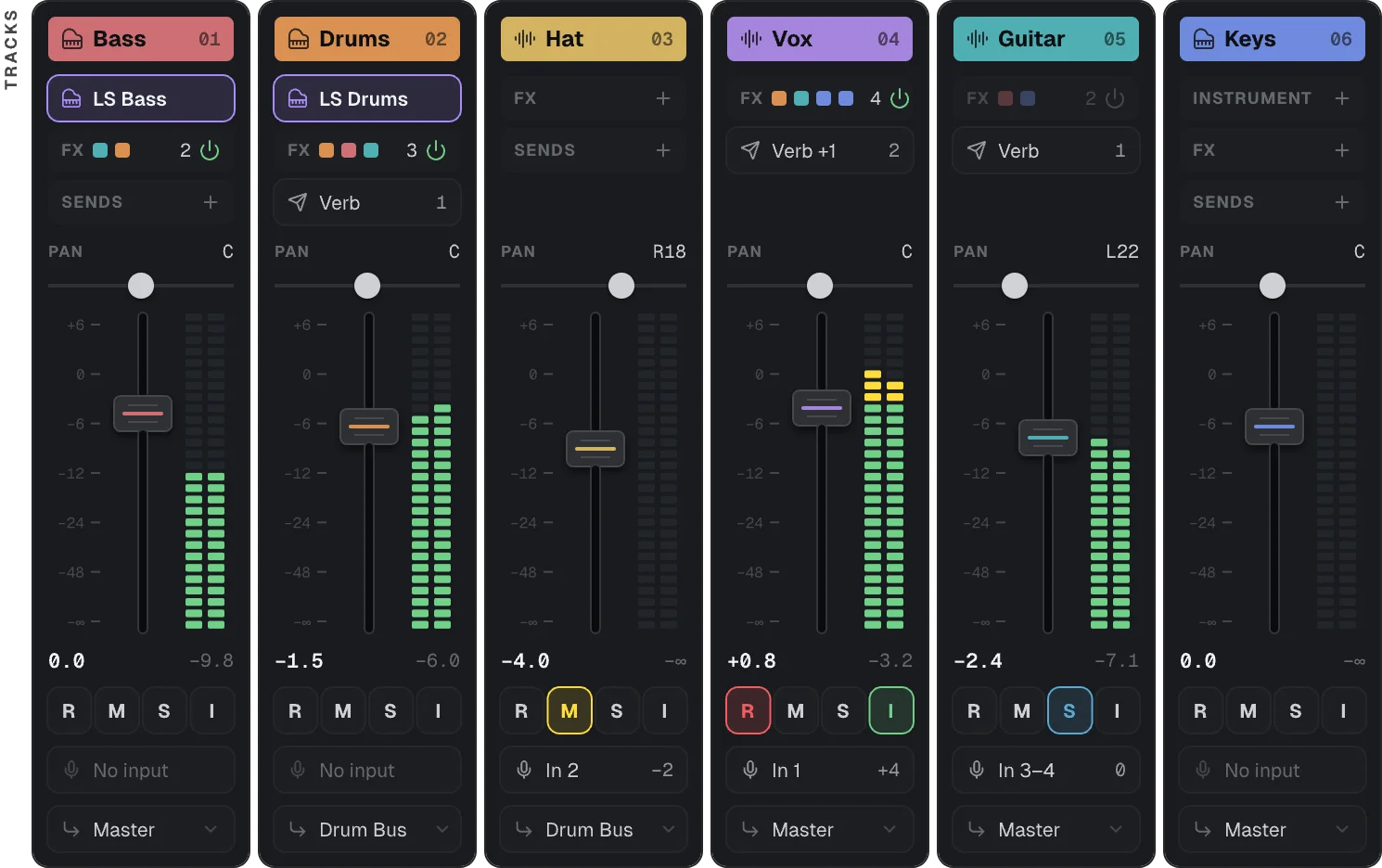
Open the mixer
Press ⌘M (Ctrl+M on Windows and Linux), click the Mixer button in the bottom bar, or choose View → Toggle Mixer Drawer. The mixer opens as a drawer at the bottom of the window.
To close it, press ⌘M again, or click the ⌄ arrow at the right end of the mixer toolbar.
The mixer toolbar
- All, Tracks and Buses choose which strips show. The Master strip always shows. When you start Looper Studio again, the mixer shows All.
- The overview in the middle has one block for each strip, in the strip's color. The box marks the strips you can see. Click or drag in the overview to scroll the strips. A scroll wheel or a trackpad swipe over the strips also scrolls them.
- Add Track opens the Add Track dialog. Click Audio or MIDI.
- Add Bus adds a bus named Bus 1, Bus 2 and so on.
- Simple and Extended change how much each strip shows. The mixer starts in Simple and remembers your choice.
Simple and Extended
Simple shows the controls you need to balance a mix. Extended adds instruments, effects, sends, input gain, inputs and routes.
| Part of a track strip | Simple | Extended |
|---|---|---|
| Title | Yes | Yes |
| INSTRUMENT (MIDI tracks) | No | Yes |
| FX | No | Yes |
| SENDS | No | Yes |
| IN | No | Yes |
| PAN, fader and meter | Yes | Yes |
| R M S I | Yes | Yes |
| INPUT and ROUTE | No | Yes |
A track strip, from top to bottom
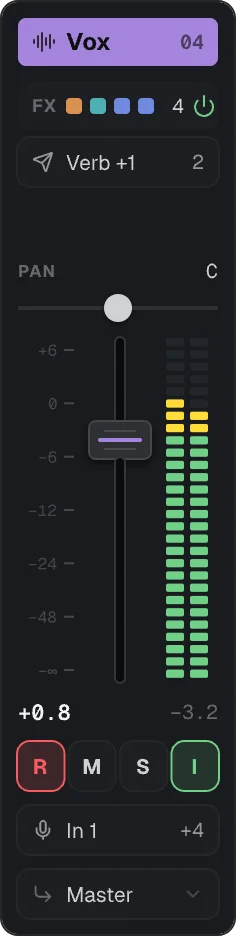
- Title: the track name and number, on the track color. The icon shows an audio track or a MIDI track.
- INSTRUMENT (MIDI tracks only): the instrument that plays the track. When the slot is empty, it reads INSTRUMENT with a +. Click it to choose an instrument. When it holds an instrument, click it to open the instrument's controls, or right-click it for Replace… and Remove. See Record MIDI.
- FX: the effects on the track.
- With no effects, the row reads FX with a +. Click it to add an effect.
- With effects, the row shows one small square for each effect, and the number of effects. Click the row to open the effects in the plugin drawer.
- Click the power icon at the right end of the row to bypass every effect on the track. Click it again to turn the effects on. See Effects.
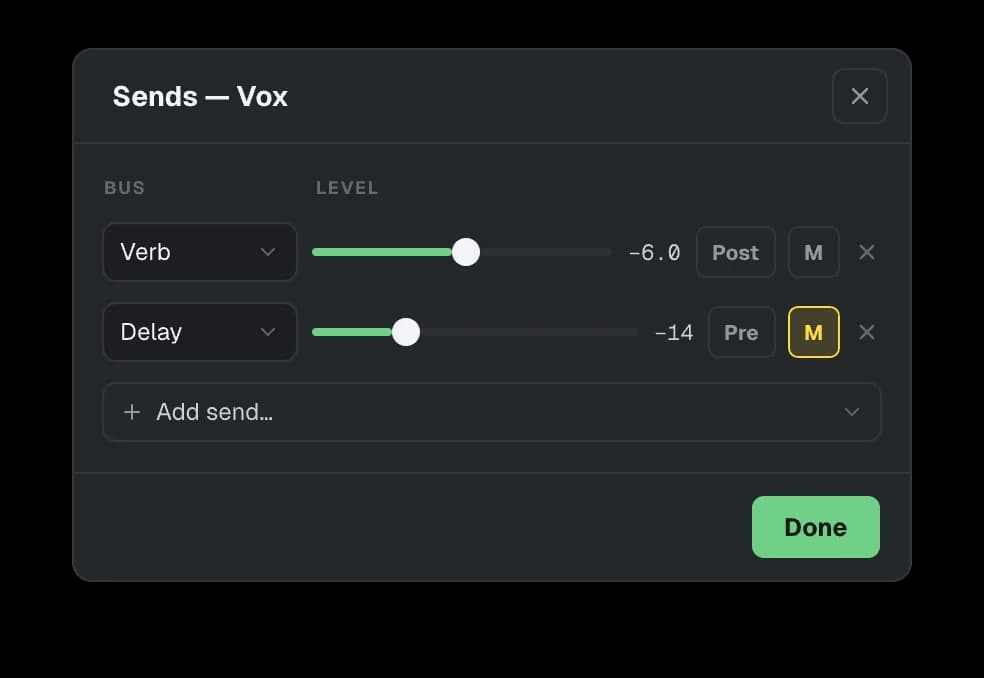
- SENDS: the buses the track sends to. Click it to open the Sends dialog.
- IN: the input gain of the track.
- PAN: drag left or right. The readout shows C for center, or a value such as 30L or 30R.
- Fader and meter: the fader sets the track's volume. Double-click the fader to reset it. The LED meter shows the level of the left and right channels. The readouts under the fader show the volume and the peak level.
- R M S I: R arms the track for recording, M mutes it, S solos it, and I turns on input monitoring. These are the same buttons as on the track header.
- INPUT: the track's first input, with +N when it has more. Click it to open the Inputs dialog.
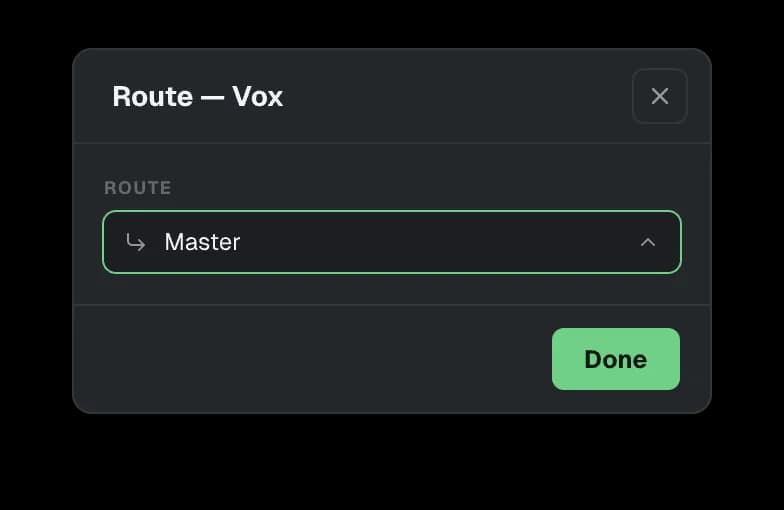
- ROUTE: where the track's sound goes, Master or a bus. Click it to open the Route dialog.
Edit inputs, sends and routes
In Extended view, the chips on a strip open these dialogs. Each change applies at once. Click Done to close the dialog.
- Inputs: one row for each input, with its SOURCE and its GAIN. A stereo pair is one row. A track can have up to 8 inputs. To add one, click + Add input.... This is the same list as ROUTING in Track settings….
- Sends: one row for each send, with its level, a Pre or Post button, a mute button and a remove button. Pre takes the signal before the track fader. Post takes it after the fader. To add a send, click + Add send... and choose a bus. A track can send to each bus once. If the song has no bus yet, click Add Bus first.
- Route: choose Master or a bus.
Buses
A bus combines several tracks, so you can set their level or add effects to them together. A bus is also where a shared reverb or delay goes.
- Click Add Bus in the mixer toolbar. The bus strip appears after the tracks, under BUSES.
- To send a whole track to the bus, set the track's ROUTE to the bus.
- To send a copy of a track to the bus, for example to a reverb, add a send in the track's SENDS.
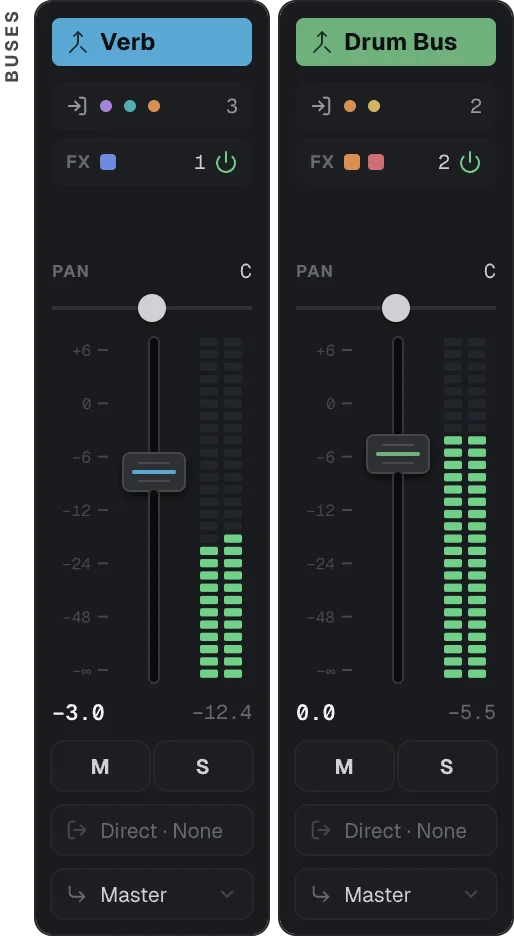
A bus strip has:
- SOURCES (Extended): one dot for each track that routes or sends to the bus, and their number.
- FX, PAN, the fader and the meter, the same as on a track.
- M and S. A bus has no R and no I.
- DIRECT OUT (Extended): it reads Direct · None until you set it. Click it to send the bus to a named output as well, from before the bus fader. The bus still goes to its route.
- ROUTE (Extended): Master or another bus.
You create named outputs in Settings → Routing. Only Direct Out and the metronome can use a named output. A ROUTE always goes to Master or a bus. To rename or delete a bus, use the Node Editor. See Routing.
The Master strip
The Master strip is at the right end of the mixer, under MASTER. It stays in place when the other strips scroll. It has:
- FX: effects on the whole mix.
- The fader and the meter, for the level of the whole mix.
- M: mutes the whole mix.
- In Extended view, a chip at the bottom for the Master's Direct Out. It sends the mix to a named output as well, from before the Master fader. The main output still plays the mix.
In the arrangement, the Master row at the bottom of the track list shows the Master level and meters, and has its own M button.
Related
Reduce Latency on Linux
Low-latency audio on Linux. Switch the driver to JACK over PipeWire, set the buffer with PIPEWIRE_QUANTUM, and set up realtime scheduling.
Import Audio and MIDI
Import audio and MIDI files. Drag WAV, AIFF, FLAC, Ogg or MP3 files onto a track, paste audio, use the Media tab, and import or export .mid files.