Map a Foot Controller
Control Looper Studio with a MIDI footswitch. Apply a controller template, learn switches, use profiles, and map Play, Advance, Next Song and PANIC.
A MIDI foot controller lets you play a show with your hands on your instrument. You connect each switch to an action in the MIDI Mappings window. One connection is a mapping.
Connect the controller
- Connect the controller by USB, or through a MIDI interface.
- Open Settings → MIDI. Under Inputs, turn on the controller.
The app reads mappings only from inputs that are turned on.
Bluetooth. On a Mac, the Bluetooth MIDI button on Settings → MIDI opens Audio MIDI Setup, where you pair the device. Windows and Linux have no Bluetooth MIDI button.
To see what a switch sends, use the MIDI monitor on Settings → MIDI. Click Start, then press the switch.
Open the MIDI Mappings window
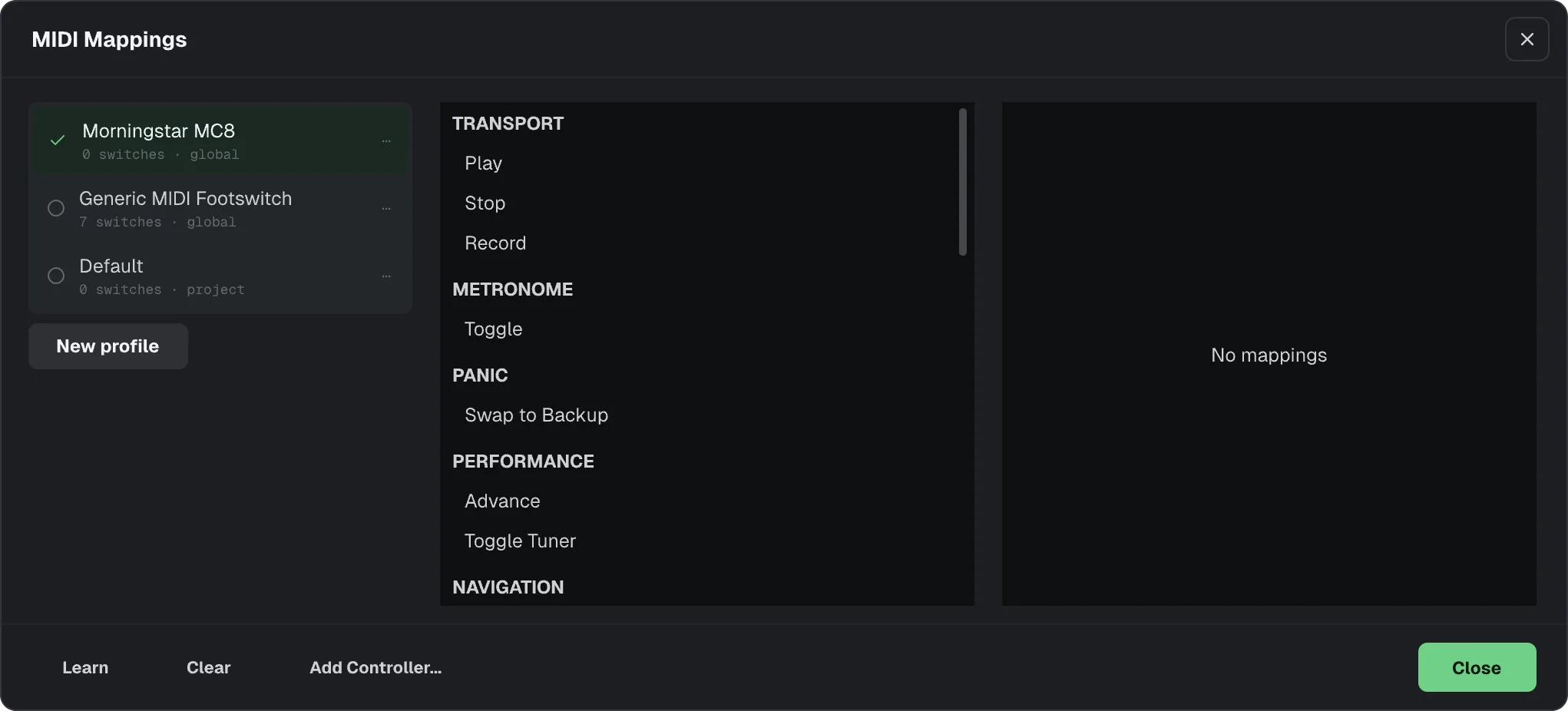
Choose View → MIDI Mapping…. The window has three columns:
- The profiles on the left. A profile is a set of mappings. Only the active profile works.
- The targets in the middle. These are the actions that a switch can do, in groups such as TRANSPORT and NAVIGATION.
- The mappings of the active profile on the right. Each row shows a MIDI message and its target, for example → Next Song.
Use a controller template
A template maps a whole controller in one step.
Choose the controller
Click Add Controller..., then click your controller:
| Template | Switches | Program the pedal to send |
|---|---|---|
| Generic MIDI Footswitch | 8 (any programmable controller) | CC 20, 21, 22 and up, on any channel |
| Morningstar MC6 MkII | 6 | Presets A to F send CC 20 to 25 (value 127) on any channel |
| Morningstar MC8 | 8 | Presets A to H send CC 20 to 27 (value 127) on any channel. Switch 8 is left free. |
| Hotone Ampero Control | 5 | The five footswitches send CC 20 to 24 (value 127) on any channel |
| AirTurn BT-200S-4 | 4 | MIDI mode, with the four pedals set to notes 60 to 63 (C4 to D#4) |
The next menu repeats the setup note for that controller. The Generic MIDI Footswitch uses numbers that Looper Studio sets, so any programmable controller can use it. The other templates are marked unchecked, and their menu says These numbers have not been checked against the real pedal.
Choose how to add it
- Add as new profile makes a new profile with the controller's name and makes it active. This profile is global, so it works in every song.
- Merge into "…" (keeps your bindings) adds the template to the active profile. If you already mapped the same message, your mapping stays.
- Replace … in "…" (backed up first) removes the mappings of the active profile, then adds the template. First, the app saves a copy of the old profile, named for example My Pedal (before Morningstar MC8).
Program the pedal
Set your pedal to send the messages in the table. Then press each switch and check that it works.
Every template uses the same order, so the same action is under the same foot on every pedal. A pedal with fewer switches uses the first part of the list.
| Switch | Action |
|---|---|
| 1 | Record |
| 2 | Play |
| 3 | Stop |
| 4 | Advance |
| 5 | Next Song |
| 6 | Prev Song |
| 7 | Metronome on or off |
The templates do not include Swap to Backup (PANIC). To use it, learn it on a free switch. On the Generic MIDI Footswitch and the Morningstar MC8, switch 8 is free.
Learn a switch yourself
- In the targets column, select an action.
- Click Learn. The button reads Listening... (cancel).
- Press the switch.
The new mapping shows in the mappings column. It goes into the active profile. Learn accepts a Control Change (CC), a Note On or a Program Change message.
To remove one mapping, click the X on its row. Clear removes all the mappings of the active profile at once.
What a switch can do
| Group | Target | What it does |
|---|---|---|
| TRANSPORT | Play | Plays or stops, like Space. |
| Stop | Stops. | |
| Record | Starts recording, like R. | |
| METRONOME | Toggle | Turns the metronome on or off. |
| PANIC | Swap to Backup | Same as PANIC in the bottom bar. See Keep a backup take. |
| PERFORMANCE | Advance | Same as ADVANCE. See Use loop regions. |
| Toggle Tuner | Turns the input tuner on or off, like TUNE. | |
| NAVIGATION | Next Song | Loads the next song of the active setlist. See Build a setlist. |
| Prev Song | Loads the song before it. | |
| TRACKS | Track name - Volume, - Pan | Follows an expression pedal or a knob. |
| Track name - Mute, - Solo, - Arm, - Monitor | Turns the button on or off. |
The TRACKS group lists the tracks of the open song. Track mappings work only in that song, so keep them in a project profile.
For the full list of MIDI messages, see MIDI implementation.
Toggle, trigger and continuous
Each target has its own type. You do not choose it.
- A trigger target, such as Stop or Next Song, acts once each time you press the switch.
- A toggle target, such as the metronome Toggle or Mute, turns on with one press and off with the next.
- A continuous target, Volume or Pan, follows the full range of a pedal or knob.
For trigger and toggle targets, a CC switch acts only when you press it (a value of 64 or more). The release does nothing. So a momentary footswitch acts once per press.
Profiles
Each profile in the list on the left shows how many mappings it has, for example 6 switches · project. The last word is its scope:
- project: saved with the song that is open. Other songs do not use it.
- global: saved in the app. It works in every song.
New profile makes a project profile. Add as new profile in Add Controller... makes a global profile, because a pedalboard belongs to your rig, not to one song.
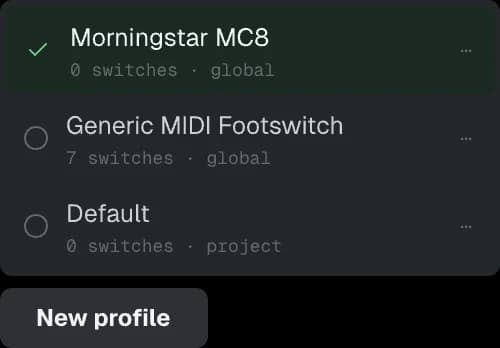
- Click a profile to make it active.
- Click … on a profile to Rename…, Duplicate… or Delete it. You cannot delete the last profile.
If a switch does nothing, see MIDI troubleshooting.