Keep a Backup Take
Protect live loops with a backup take. Set backup in the Takes window, swap to it with PANIC or a footswitch, and restart a bad pass with RETRY.
On stage, a new recording can go wrong. A backup take is a take of a clip that you trust. Two buttons in the bottom bar help you:
- PANIC puts the backup take back into the clip at once.
- RETRY throws away the pass that you are recording and starts it again.
For how takes work, see Takes.
Set a backup take
Record a good take
Record the rec clip until you have a take that you trust. See Record your first loop.
Open the Takes window
Right-click the clip and choose Takes…. You can also select the clip and click Takes in the Inspector.
Mark the take
On the take you trust, click Set backup. The button changes to Backup ✓.
Save the song
Press ⌘S (Ctrl+S on Windows and Linux). The backup mark is saved with the song.
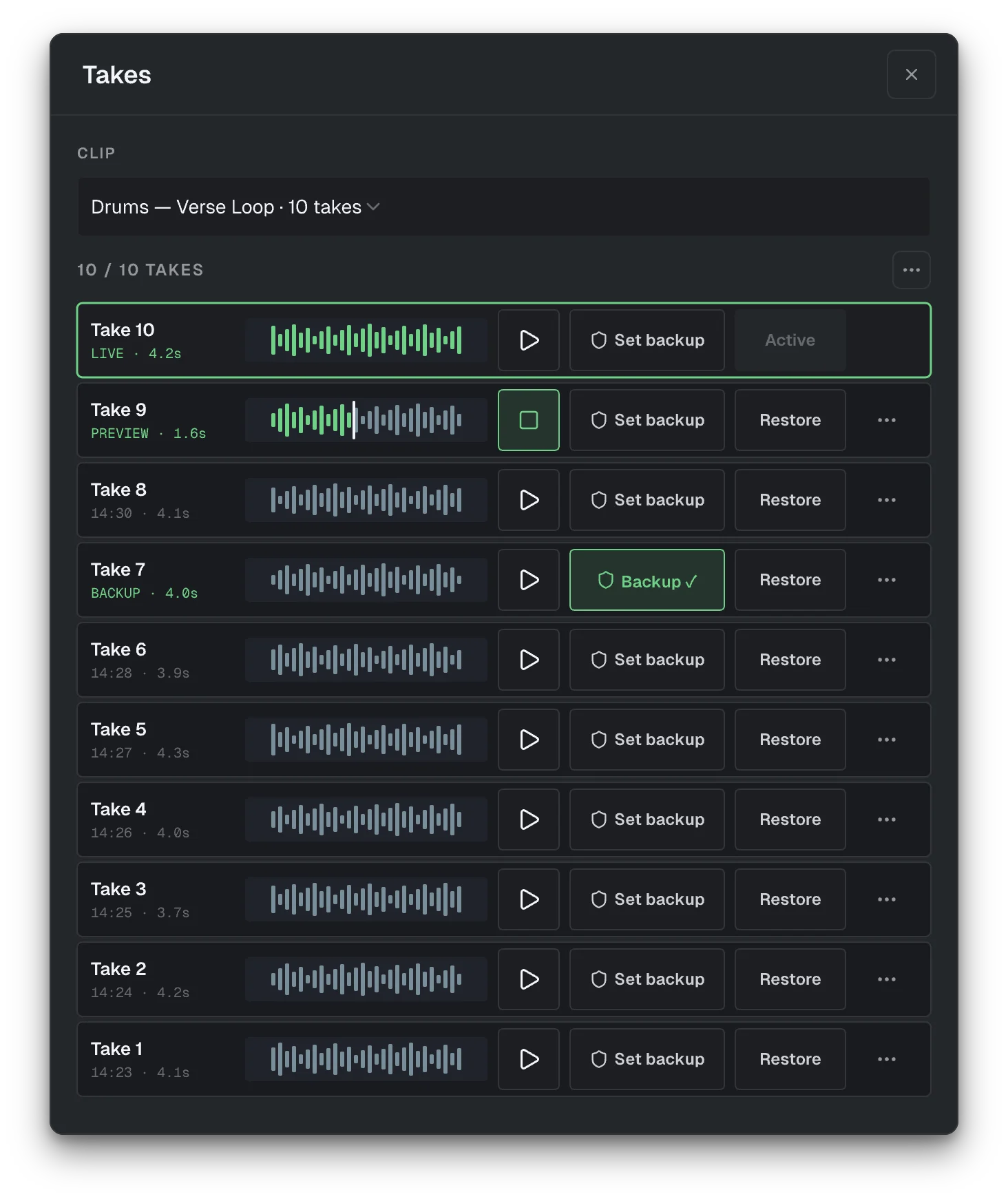
Each clip has one backup take. To use a different take as the backup, click Set backup on that take.
The app keeps the last 10 takes of each clip, but it never removes the backup take. When you open the song, the app loads the backup take into memory, so PANIC works at once.
Swap to the backup with PANIC
When a clip in the song has a backup take, PANIC shows in the bottom bar. Its tooltip is Panic — swap to backup take.

Click PANIC. The app finds the rec clip under the playhead that has a backup take. If there is none, it uses the last such clip before the playhead. Then it puts the backup take into that clip.
- Playback does not stop.
- The take that you replaced stays in the Takes window.
PANIC does not stop stuck MIDI notes. To stop all MIDI notes, press Esc, or click Panic · All notes off in Settings → MIDI.
Restart a pass with RETRY
RETRY is always in the bottom bar. It turns amber while you record. When you are not recording, it is grey.
Click RETRY while you record. The app throws away the pass that you are recording and moves the playhead back to the start of the rec clip. Recording goes on. The pass that you threw away is not kept as a take.
Use a footswitch for PANIC
- Choose View → MIDI Mapping….
- In the targets column, select Swap to Backup in the PANIC group.
- Click Learn, then press the switch.
The footswitch templates in Add Controller... do not include PANIC, so map it yourself. RETRY has no MIDI target. See Set up a foot controller.
Before the show
- Set a backup take on each clip that you record live.
- Check that PANIC shows in the bottom bar.
- Save the song.
Use Loop Regions
Hold part of a song on a loop for as long as you want, then advance with ADVANCE, the A key or a footswitch. Make, move, resize and delete loop regions.
Map a Foot Controller
Control Looper Studio with a MIDI footswitch. Apply a controller template, learn switches, use profiles, and map Play, Advance, Next Song and PANIC.