Sections
Sections are named, colored parts of a song, such as Verse and Chorus. Plan a song as sections, then create, rename, color and duplicate them.
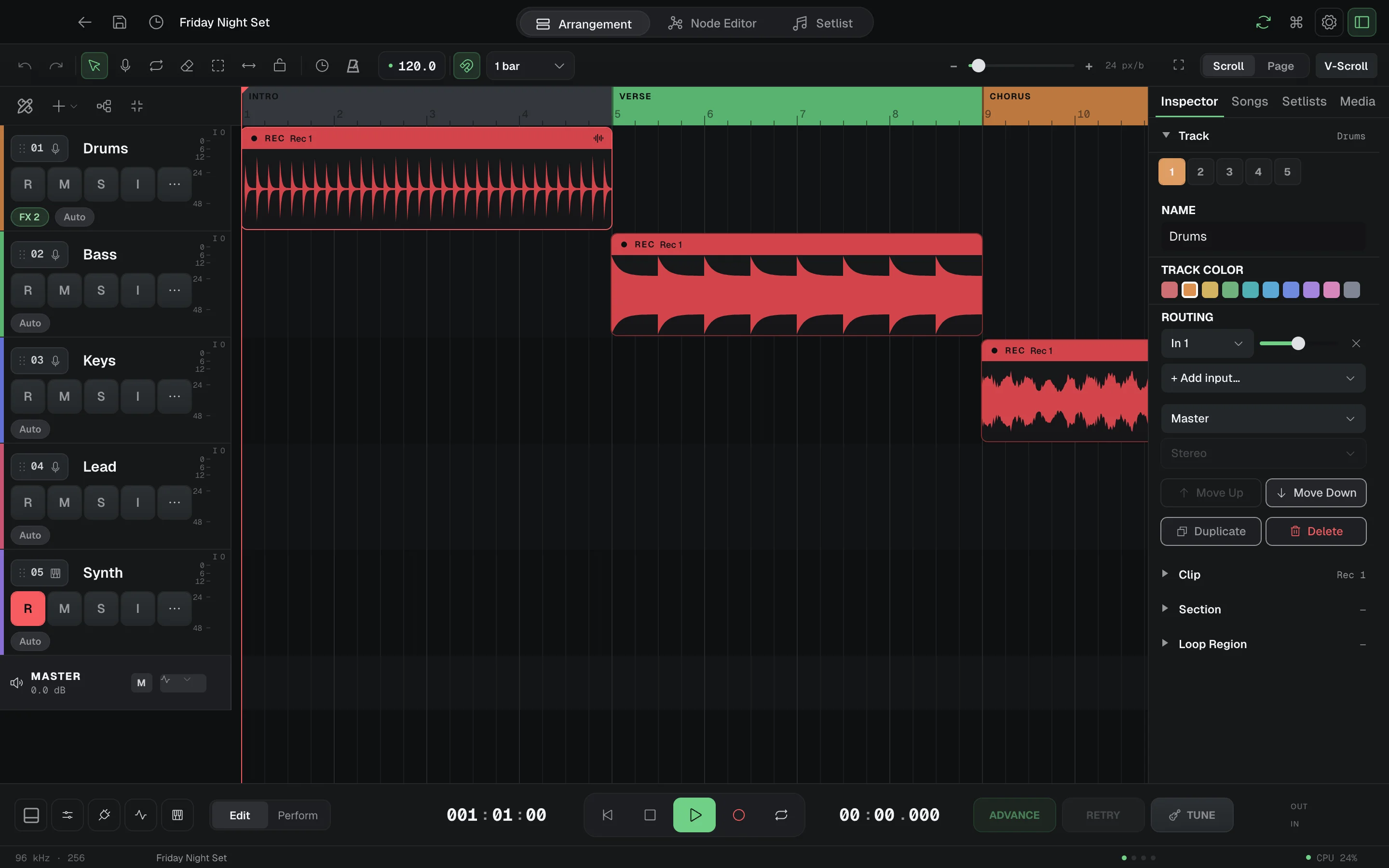
A section is a named, colored part of a song on the timeline: Intro, Verse, Chorus, Solo. Sections give the song a map. You can plan the song as sections before you record a note, and you can see at a glance where you are while you play.
What sections do
Sections are markers. They name and color a span of bars. They do not change what plays.
- Moving, resizing or deleting a section does not move or delete the clips under it.
- To play a part more than once, use Loop clips.
- To repeat a part until you are ready to move on, use a loop region.
- In Perform mode, the song stops where its last clip or last section ends, whichever is later, rounded up to a whole bar.
Plan a song as sections
A common way to start a song:
- Draw the sections first: Intro, Verse, Chorus, Verse, Chorus, Outro. Set their lengths in bars. For a part that comes back, use Duplicate and drag the copy into place. Every Verse then keeps the same name and color.
- Record your parts into Rec clips inside the first Verse and the first Chorus.
- Fill the later sections with Loop clips that play those recordings again. If a track has more than one Rec clip, use Plays to choose the one that each Loop clip plays.
- Add a loop region over any part that must repeat for as long as the room wants, such as a solo.
The sections now show the shape of the song, and the clips follow that shape.
Where sections are
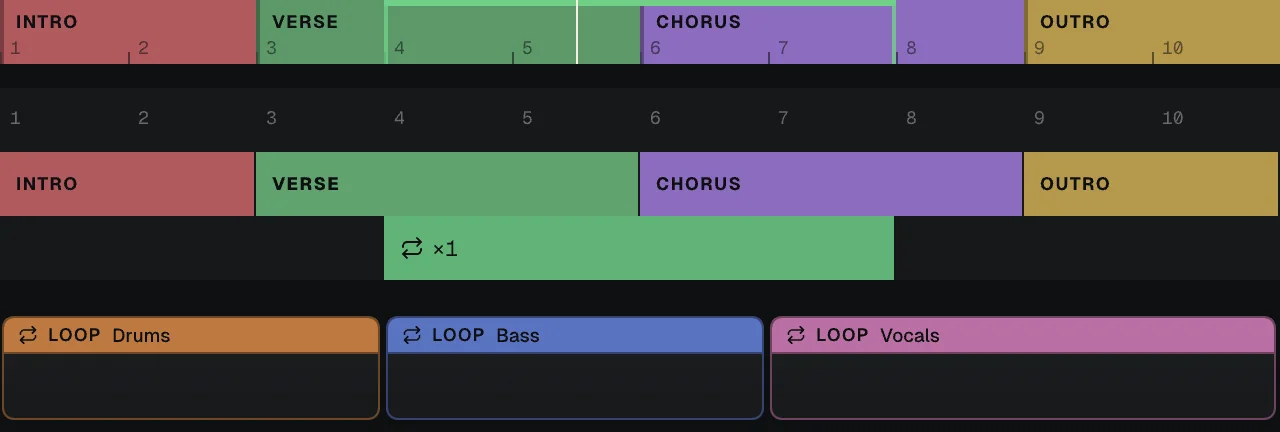
Sections sit in the header above the tracks.
- Normally, the header is one row. It shows the bars, the sections and the loop regions together. A click there moves the playhead. You cannot change sections in this row.
- To edit sections, click the Edit sections and loops button in the bar above the track headers. Three rows open: the ruler, Sections and Loop regions. To close them, click the button again or press Esc.
Make a section
Use one of these:
- Double-click an empty place in the Sections row.
- Click + in the Sections row (Add section at playhead).
- Click + in the bar above the track headers, then choose Section at playhead. This also opens the edit rows.
A new section starts on the nearest bar. It is 4 bars long, or shorter if the next section starts sooner. It gets a name such as Section 1, and a name field opens at once so you can type Verse.
Make a section from a clip
Right-click a clip and choose Make section from clip. If you selected clips on more than one track, the item is Make section from clips. Type a name and click Create.
The new section goes at the end of the song. Each selected clip gets a Loop clip there that plays its recording again. The original clips do not move. Select one clip per track.
Change a section
| To | Do this |
|---|---|
| Rename | Double-click the section, or right-click it and choose Rename. Press Return to keep the name, or Esc to cancel. |
| Change the color | Right-click the section and choose Change Color…. Or select it and click a swatch under Color in the Inspector. |
| Move | Drag the section. |
| Resize | Drag its left or right edge. |
| Duplicate | Right-click the section and choose Duplicate. |
| Delete | Right-click the section and choose Delete. |
Moving and resizing follow the snap setting in the toolbar. On iPad, use the Inspector to change the color, duplicate or delete a section.
Duplicates are one section
Duplicate puts a copy of the section right after the original, with the same name, color and length. It copies the marker only, not the clips under it. Later sections do not move, so the copy can sit on top of the next section until you drag it.
The copy and the original count as one section that appears twice. When you rename or recolor one of them, the other changes too. This keeps every Verse called Verse.
The Section inspector
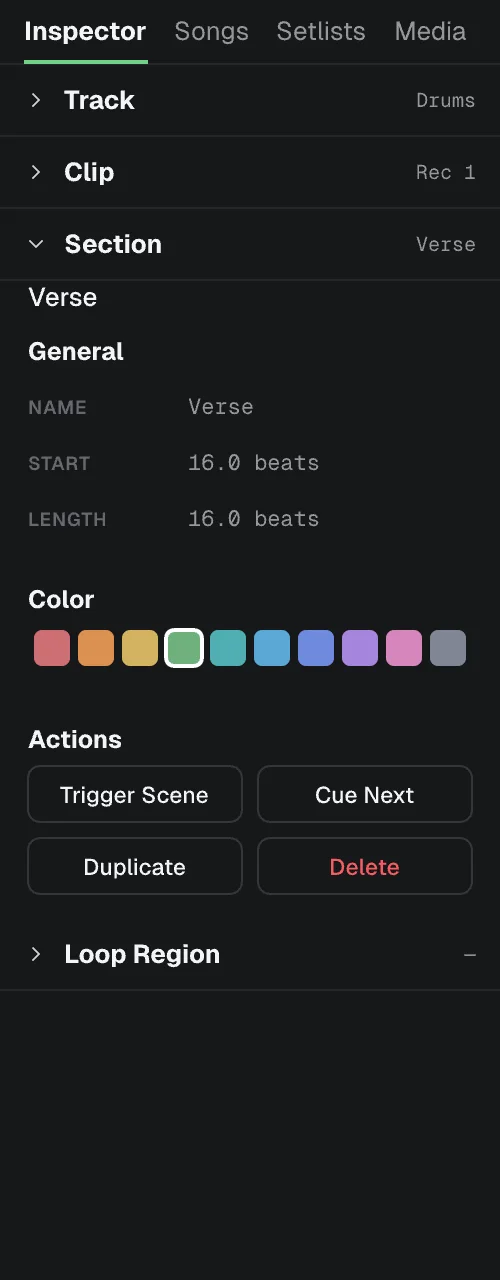
Click a section in the Sections row to select it. The sidebar Inspector tab then shows the Section part:
- General: the NAME, START and LENGTH of the section. These are for reading only. Start and length are in beats.
- Color: ten swatches. Click one to recolor the section.
- Actions:
- Trigger Scene moves the playhead to the start of the section and starts playback.
- Cue Next marks the section to play next. When playback reaches the end of the section that is playing, it jumps to the cued section. Stop clears the cue.
- Duplicate and Delete work as in the right-click menu.
Sections and loop regions
Sections and loop regions are separate rows and separate things.
- A section names a part of the song. It never repeats by itself.
- A loop region repeats its span until you press ADVANCE. Then playback continues past it.
You often put a loop region over a section, or over part of one, to hold that part for as long as you need. See Loop regions.
Songs
A song holds the tracks, clips, sections and automation for one piece of music. Covers tempo, time signature, key, autosave, save points and templates.
Tracks and Clips
Tracks are channels with an input, effects and an output. Clips are the blocks on the timeline. Learn the track header buttons, the track menu and limits.